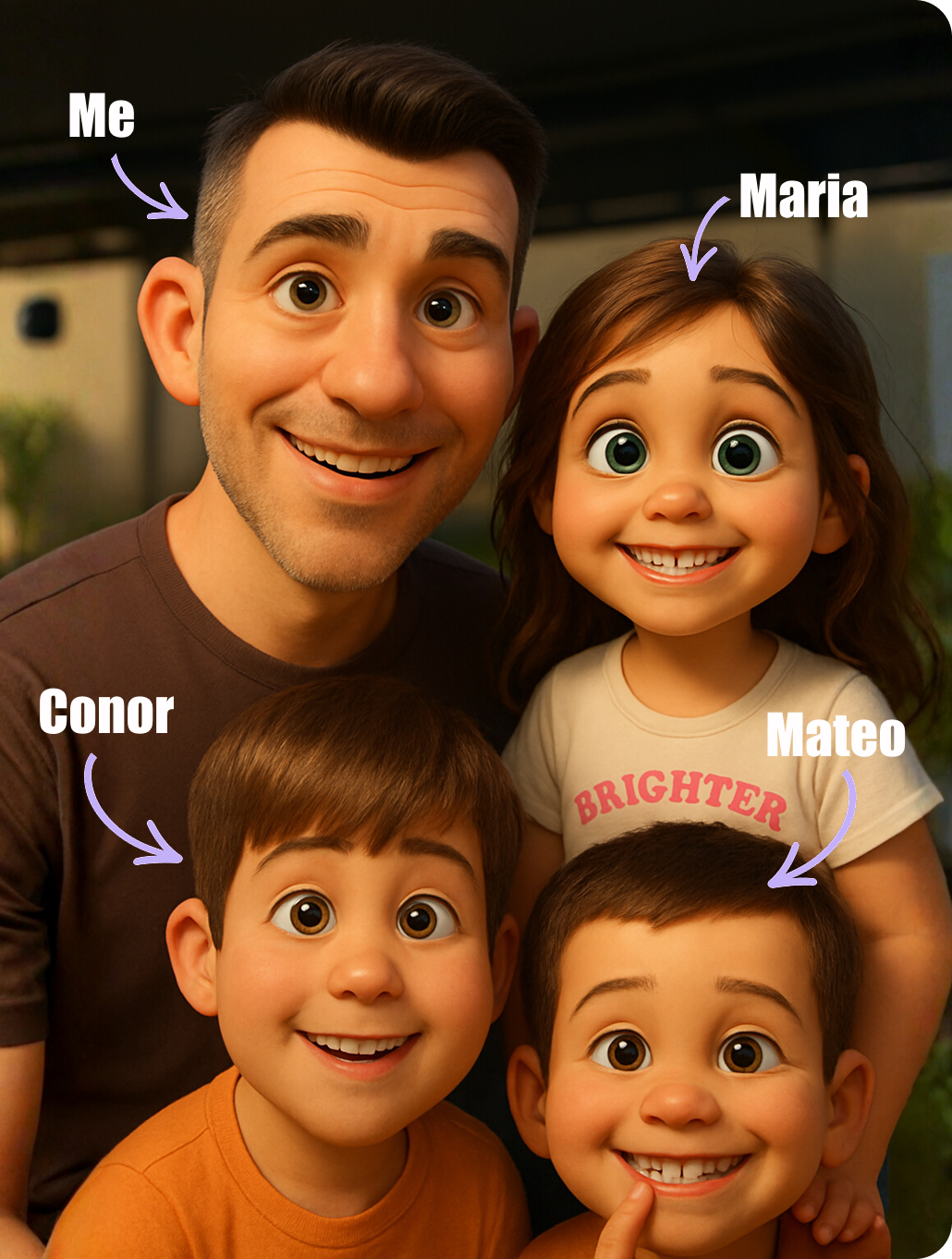



We Tested a Voice AI Companion With All Three Kids and Each Had a Different Experience

ON THIS PAGE
Subscribe To Get Weekly Family AI Discoveries

My brother-in-law from Colombia video called us today saying they were woken by a small earthquake tremor this morning. Mateo (8) overheard the conversation and started asking questions. What makes the ground shake? Is my tio safe? Could it happen here in Ireland?
I thought this would be a good opportunity to test run a new app I've just downloaded called Askie. Fifteen minutes later he was explaining tectonic plates to his younger sister. That's when I decided to test this app properly with all three kids.
Here's what happened when each child, ages 3, 6, and 8, spent time with Askie's voice AI. The results were different for every age group, and not always in the ways I expected.
This guide covers the full setup process, what worked at each age, where the app fell short, and how to get the best experience for your family.
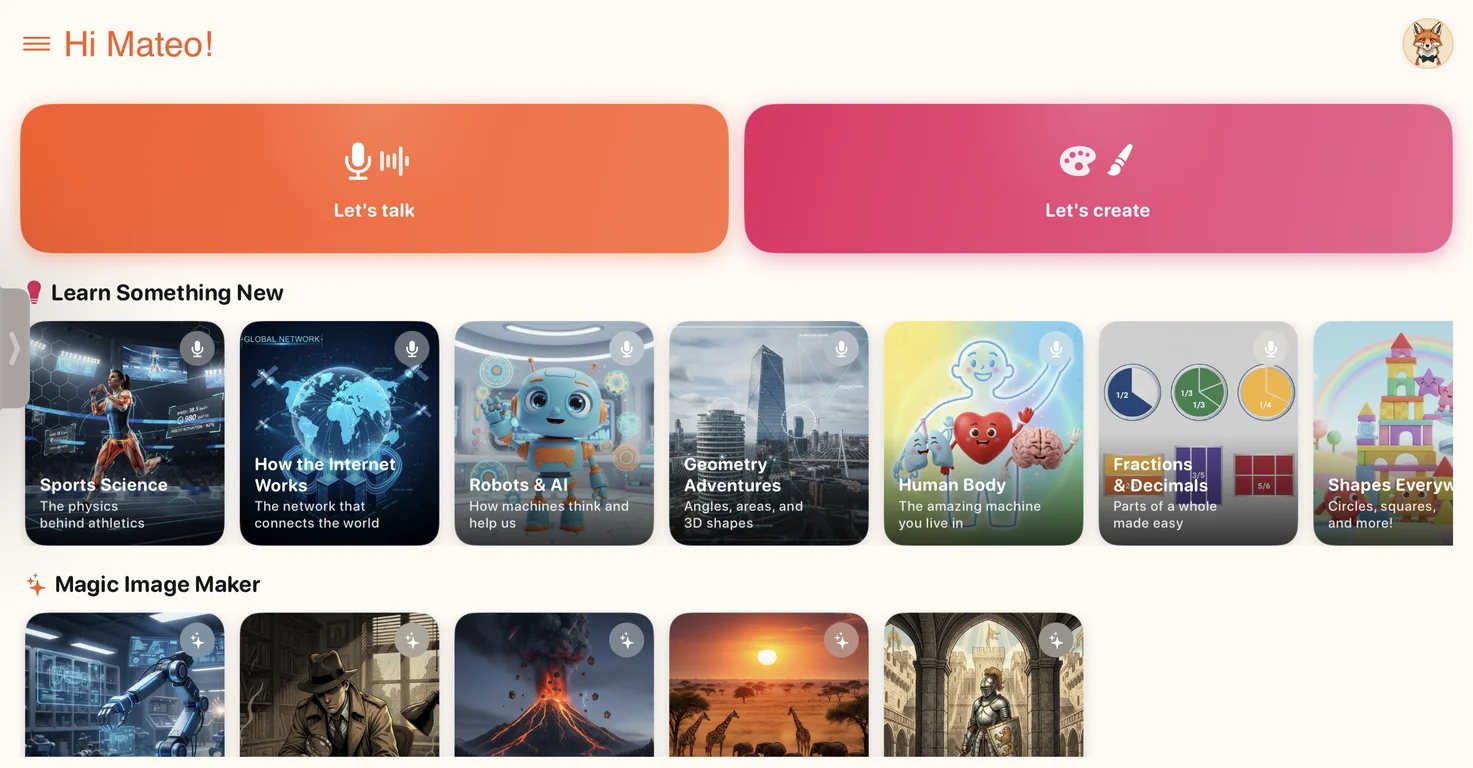
Quick overview
- Time: 10-20 minutes per child per session
- Cost: Free tier available / $14.99/month Premium / $39.99/month Max, with a reader discount through our link
- Difficulty: Beginner
- Age range: 3-15 years (best for 5-10 in our testing)
- Key learning: Prompting a guessing game is the engagement breakthrough for ages 5-8
- What you'll create: Voice-led learning conversations, quizzes, and AI-generated images on any topic your child chooses
What you'll need
Tools
- Any device with a browser. The web version at kidsai.app works on Windows, Mac, Android, Chrome OS, and iPhone. Sign up there first to get the reader discount, then use the same account in the iPhone, iPad or Android app.
- Askie account (parent email required for setup)
- Quiet room for voice recognition to work properly
Your child's input
- A topic they're curious about (animals, dinosaurs, space, current events)
- Willingness to talk to a screen (younger kids may need warming up)
Parent skills
- None required beyond downloading the app and creating an account
- For ages 3-5: be ready to repeat or rephrase what your child says if speech recognition misses it
Optional
- Printer for colouring pages generated during sessions
- Our reader link, which applies the AI Tools for Kids discount automatically 🤩
Not sure which tool is right for your child?
Take our free 2-minute quiz and get personalized AI tool recommendations based on your child's age and interests.
Step-by-step process
Each of our three kids had a session with Askie. I'll walk through what happened at each age so you know what to expect.

Step 1: Download and set up (3 minutes)
Go to kidsai.app through our reader link and create an account with your parent email. Askie asks for your child's age during setup, which adjusts the conversation difficulty and topic categories. You can then sign in on the iPhone, iPad or Android app with the same account.
💡 Pro Tip: Sign up through our reader link before you download the app. The discount comes through the link, so there is no code to enter.
Step 2: Pick an avatar and topic
Each child picks an avatar character. Conor (3) chose a panda. Maria (6) chose a cat. Mateo (8) skipped straight to topics.
The topic categories adapt based on the age you entered during setup. Maria saw different options than Mateo. Both had plenty to choose from.
Step 3: Mateo's session, earthquake research (age 8)
Mateo tapped "Let's Talk" and started asking about earthquakes. He wanted to know why the ground shakes and whether his abuelo in Colombia was safe.
"Why did the ground shake near my abuelo's house? Is he going to be OK?"
The AI explained tectonic plates in language an 8-year-old could follow. It covered fault lines, how earthquakes are measured, and why some regions have more seismic activity. Without any prompting from us, it generated an image of tectonic plates pushing against each other.
The moment that surprised me most: when Mateo mentioned being worried about his uncle and abuelo, the AI's tone changed. It acknowledged his concern, said something reassuring about most tremors being minor, and gently moved back to the science. It felt like the AI understood this was personal, not academic.
Result: 15+ minutes of focused conversation. He came away understanding plate tectonics and feeling reassured about his family.
Step 4: Maria's session, safari animal guessing game (age 6)
Maria started with open conversation about animals. She lost interest after about two minutes. The responses were fine, but there was no structure to keep her engaged.
Then I prompted it: "Let's play a game. You describe a safari animal, and Maria has to try to guess it." The AI jumped straight in. That was the turning point. Maria perked up and started answering questions, getting competitive with herself about how many she could get right.
She went through safari animals, then asked to switch to Irish animals. The AI adapted without missing a beat, asking about red foxes and Irish hares.
We also tried generating a colouring page. First attempt produced a full-colour Pixar-style image of a lion. Not what we wanted. After asking specifically for "black and white outline only, simple lines for a child to colour," we got something printable. Took three attempts total. If you want a smoother colouring page workflow, check out our custom coloring pages project using dedicated image tools.
Result: 10-15 minutes of engagement. Turning the conversation into a guessing game was the clear winner for this age group.
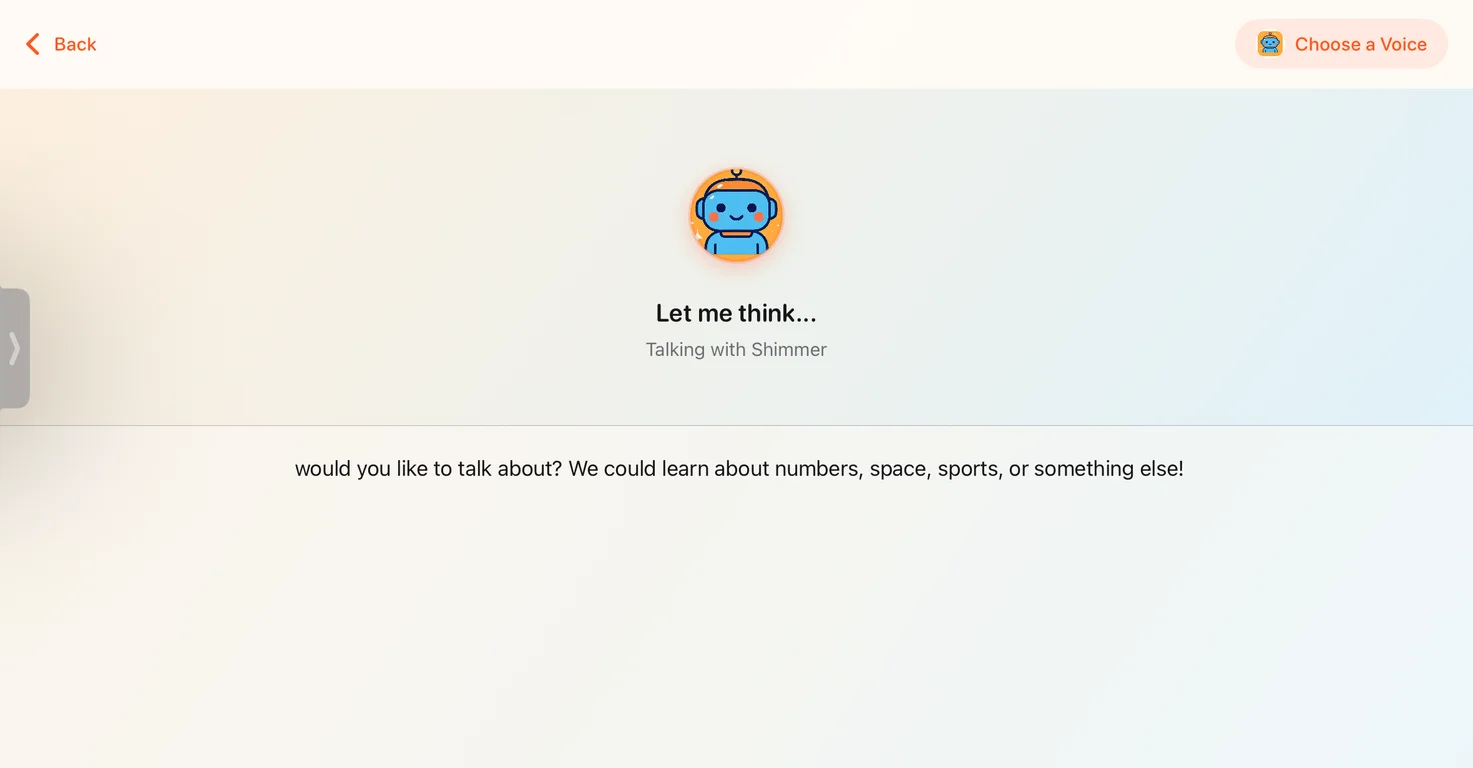
Step 5: Conor's session, dinosaur chat (age 3)
Conor picked the panda avatar and we chose dinosaurs. He was hesitant at first. Talking to a phone screen isn't natural for a 3-year-old who's used to talking to actual people.
After a minute of gentle prompting ("Tell the panda what your favourite dinosaur is"), he started warming up. He said "T-Rex" and the AI responded with facts about how big T-Rex was and what it ate.
Speech recognition was the biggest challenge. Conor's speech is a little behind where it should be for his age, so the AI struggled more than it would with a typical 3-year-old. He had to repeat himself three or four times, which frustrated him briefly. But once it clicked and the AI started responding to him, he was smiling and engaged.
When we tried to end the session, he protested. He wanted to keep talking about dinosaurs. That's a good sign for engagement, even if the speech recognition needs work for this age group.
Result: 10 minutes of engagement after initial hesitation. Parent involvement required throughout for the 3-year-old.
What worked
Age-adaptive conversations
The vocabulary and complexity genuinely changed based on the child's age. Conor got simple dinosaur facts. Mateo got plate tectonics explained with scientific terms he could still follow. This isn't a one-size-fits-all chatbot.
Lesson: Enter the correct age during setup. It makes a real difference to the experience.
Guessing games for the 5-8 range
Open conversation works for older kids who already know what they want to ask. For ages 5-8, prompting the AI to play a guessing game provides the structure that keeps them focused. Maria went from bored to engaged in seconds when I asked the AI to describe animals for her to guess.
Lesson: If your child loses interest in free conversation, prompt the AI to play a guessing game on their topic. Something like "describe an animal and let my child guess it" works well.
Emotional intelligence
The AI picked up on Mateo's worry about his uncle and abuelo and responded with genuine empathy before returning to the educational content. I didn't expect that from a children's AI tool.
Lesson: Don't shy away from using real-life concerns as conversation starters. The AI handles emotional context well.
What didn't work
Speech recognition for ages 3-4
Conor had to repeat himself multiple times. His pronunciation though is a little behind what is typical for his age, which is why the AI struggled a little to understand him consistently.
Time wasted: About 1-2 minutes of repeated attempts before the conversation flowed
Lesson: For ages 3-4, sit next to your child and be ready to rephrase their questions. Or type them instead of using voice.
Colouring page generation
Getting a printable black-and-white outline took three attempts. The AI defaults to colour illustrations, and you need specific prompting to get simple outlines suitable for colouring.
Time wasted: 2 minutes getting the right image format
Lesson: For colouring pages, use the exact phrase "black and white outline only, simple lines for a child to colour." Or use a dedicated image generation tool instead.
A genuinely good way to introduce kids to AI
If you've been wondering how to let your kids interact with AI without handing them ChatGPT, Askie is the best option we've found.
It's engaging. All three of our kids wanted to keep going past the time we'd set. Mateo learned real science from a real concern about his family. Maria turned a boring topic into a competitive guessing game she didn't want to stop. Conor chatted about dinosaurs with a smile on his face.
It's also built with safety at its core. Askie never collects personal information from children. All content is moderated in real time through a multi-layer AI safety system, and anything inappropriate gets blocked immediately. Parents get a dashboard where you can review every conversation, see what images were generated, and set daily or weekly limits on usage. Each child gets their own profile with age-appropriate settings, so a 3-year-old and an 8-year-old get very different experiences.
The app is fully COPPA compliant, uses encryption, and does not sell, rent, or share your child's data with third parties. For parents who care about privacy (which should be all of us), that matters.
Is it perfect? No. Speech recognition needs work for younger children, and the image generation could be more intuitive. But as a way for kids to explore topics they're curious about, build verbal confidence, and interact with AI in a safe environment, Askie is the real deal.
Exclusive for AI Tools for Kids readers: Sign up through our reader link and the discount is applied automatically. After that, the same account works in the iPhone, iPad and Android apps.
Getting the most out of Askie
Before you start:
- Enter the correct age during account setup. The conversation difficulty adapts based on this.
- Find a quiet room. Background noise interferes with speech recognition.
- Have a topic in mind before opening the app. Real-life curiosity ("Why did the ground shake?") produces better conversations than browsing categories.
During the session:
- For ages 3-5, sit alongside your child and help rephrase questions the AI misses.
- If open conversation isn't working, prompt the AI to play a guessing game (e.g. "describe a safari animal and let Maria guess it"). This was the breakthrough for our 6-year-old.
- Let children lead the topic. Mateo started with earthquakes and ended up learning about seismology because he followed his own questions.
What I'd do differently:
- Start Conor with a guessing game instead of open conversation. Structured questions would have reduced the speech recognition frustration.
- Print the colouring pages immediately. Maria lost interest by the time I got around to printing them.
- Set a timer. All three kids wanted to keep going past the 15-minute mark, which is great for engagement but worth managing.
Common issues and solutions
Problem: AI doesn't understand your child's speech
Solution: Move to a quieter room. Speak clearly and at normal speed. For very young children (3-4), sit beside them and rephrase questions the AI misses. You can also type instead of using voice.
Problem: Child loses interest in open conversation
Solution: Prompt the AI to play a guessing game on the same topic. Try "describe an animal and let my child guess it." This worked instantly for our 6-year-old who was bored with free-form chat.
Problem: Image generation produces colour instead of colouring pages
Solution: Be specific with your request. Say "black and white outline only, simple lines for a child to colour." Expect 2-3 attempts to get a clean result.
Problem: Audio error during session
Solution: Close and reopen the app. We had one audio error during Maria's session. Restarting fixed it. Their support team responded within minutes when I reported it.
Problem: Child is hesitant to talk to the screen
Solution: Start by talking to the AI yourself while your child watches. Then invite them to ask one question. Conor needed about a minute of watching before he joined in.
Problem: Reader discount not showing
Solution: Open Askie through our reader link and sign up on that page. Signing up on the Askie homepage or straight from an app store does not include the reader discount.