


We Restored Our Grandparents' Wedding Photos Using Nano Banana 2
ON THIS PAGE
Subscribe To Get Weekly Family AI Discoveries

In my parents' sitting room, there are two framed wedding photos on the wall. One of my grandmother and grandfather on my mother's side. One of my nana and granddad on my father's side. They've been hanging there since I was a kid.
I never met either of my granddads. The only thing I had was those photos on the wall, and they were faded, grainy, and hard to read. I knew what they looked like, roughly. But I never got a clear picture of them.
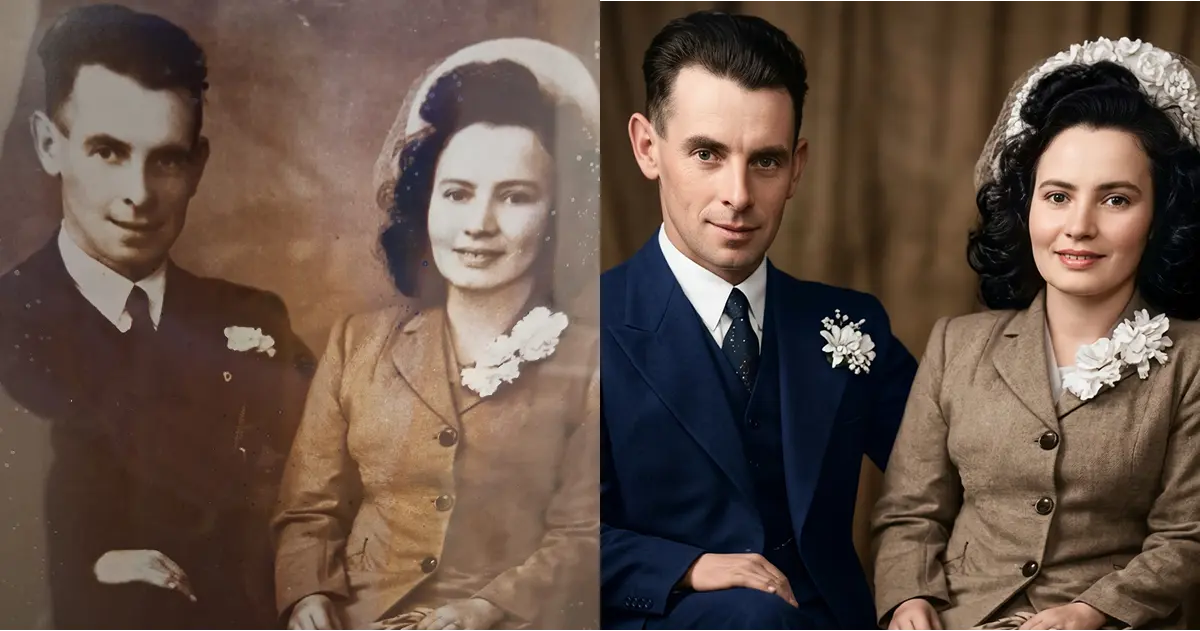
Last week, I took close-up photos of both wedding pictures with my phone and ran them through Nano Banana 2, Google's latest AI image generator. The restored versions were sharp, colourful, and detailed. Then I took it a step further and animated them with Kling 3.0.
My mum got emotional when she saw them. My dad said it looked nothing like his parents. My 8-year-old wanted to know if the photos were real. My 6-year-old asked to watch the videos again and again.
Here's the full process, the exact prompts, and what happened when we shared the results with three generations of our family.
Quick overview
- Time: 20-30 minutes for photo restoration, plus 10 minutes for video animation
- Cost: Free via Google Gemini, or included with Higgsfield annual subscription
- Difficulty: Beginner
- Age range: All Ages
- Key learning: AI photo restoration brings family history to life across generations
- What you'll create: Restored high-quality portraits from old family photos, plus optional animated video
What you'll need
Tools:
- Google Gemini (free) or Higgsfield AI ($96/year for annual plan)
- Kling 3.0 (optional, for animation, free tier available)
- A smartphone camera
Your child's input:
- Curiosity about family history
- Questions about who the people in the photos are
Parent skills:
- Typing a prompt into Gemini or Higgsfield
- Taking a clear phone photo of an old picture
Optional:
- A printer to print the restored photos
- A frame for the finished result
Not sure which tool is right for your child?
Take our free 2-minute quiz and get personalized AI tool recommendations based on your child's age and interests.
Step-by-step process
The whole project has three parts: capture, restore, and animate. You only need the first two. The animation is a bonus that takes the result to another level.
Step 1: Photograph the old photos
Find the oldest, most faded family photos you have. Framed on a wall, tucked in an album, or sitting in a drawer. Take a close-up photo with your phone.
What I did: I was picking my kids up from my parents' house and took photos of the two wedding pictures hanging in the sitting room. I got as close as I could, avoided flash, and made sure there was no glare from the glass.
💡 Pro Tip: If the photo is behind glass, angle your phone slightly to avoid reflections. Natural daylight gives the best results. Take multiple shots and pick the clearest one.
Step 2: Upload and restore with Nano Banana 2
Open Google Gemini (gemini.google.com) or Higgsfield AI if you have a subscription. Upload your photo and use this prompt:
Restore this old photo into a professional portrait with DSLR-quality colour and detail. Ensure the restored image looks natural, retains exact facial features, and has great clarity.
What I did: I used Higgsfield because I pay for an annual subscription. I generated three different versions for each wedding photo, six restorations total. Three for my mother's parents and three for my father's parents.
Result: The output was incredible. Sharp faces, natural skin tones, and realistic colour throughout. Details I had never noticed in the originals came through clearly for the first time.
💡 Pro Tip: Generate multiple versions. Each one interprets the original slightly differently. Pick the one that feels closest to how the person looked, or ask a family member who knew them.

Step 3: Animate with Kling 3.0 (optional)
This step is optional but it made the biggest impact on my family. Take your best restored photo and upload it to Kling 3.0 as a first frame for video generation.
What I did: I uploaded the restored wedding photos and prompted Kling to animate them. In both cases, the result showed my granddad giving his wife a kiss on the cheek, and both my nana and grandma smiled in response. It looked like a real moment captured on camera.
Result: Short videos, a few seconds each, that brought the still photos to life in a way that hit differently to the static restorations.
Step 4: Share with your family
This is where the project gets interesting. Show the restored photos and videos to different generations of your family and watch the reactions.
What happened with my parents:
My dad looked at the restored photos of his parents. He was initially impressed with the quality. Then I showed him the animated video. His response: "No, that looked nothing like them." He laughed and called it another failure for AI.
My mum had a completely different reaction. When she saw the restored photos of her parents, she got upset. Not in a bad way. The images transported her back to that time. The restoration was close to what she had in her head for how they looked. It brought something back that a faded photo on the wall never could.
What happened with the kids:
Mateo (8) looked at the photos and said, "That's cool. But is that real?" I explained that it was an AI interpretation of the original, not an exact replica. He understood but kept comparing the two versions.
My daughter (6) smiled when she saw the restored photos. But the videos were what got her. She wanted to watch them again and again, especially the one of my grandma getting a kiss on the cheek from my granddad. She kept asking questions. "But that's not my nana and granddad, that's YOUR nana and granddad." It opened up a conversation about family history that a framed photo on the wall had never managed to start.
Step 5: Print and display (optional)
If you're happy with the restoration, print it. Put it next to the original or frame it as a gift for a grandparent. It makes a great present for birthdays, Mother's Day, Father's Day, or Christmas.
Why this project matters
Old family photos fade. Details disappear. And for kids who never met those relatives, the photos are abstract. They see a blurry figure in old clothes and struggle to connect.
Restoring those photos with AI gives kids something concrete to look at. Sharp faces. Real expressions. Colour. It bridges the gap between a name they've heard and a person they can see clearly.
The animated videos go further. Seeing a still photo move, even for a few seconds, creates a reaction that a static image does not. My daughter asking to watch it "again, again" told me more than any engagement metric could.
What surprised me most was how differently my parents reacted. Same tool, same process, completely different emotional responses. That's worth knowing before you try this with your own family. Some people will love it. Some will find the AI interpretation too far from their memory. Both reactions are valid.
Final verdict
This is one of the simplest AI projects we have done and one of the most meaningful. No complex prompts. No paid tools required. One photo, one prompt, and a result that started a conversation across three generations.
The fact that my mum got emotional and my dad laughed it off tells you everything about how subjective this is. The restoration is not a perfect record. It is an AI interpretation. But for my daughter, who never met her great-granddads, it gave her something to connect with. "Again, again" is the strongest review a 6-year-old gives.
Nano Banana 2 handles this well because of its strength with facial detail and colour accuracy. The free tier on Google Gemini is all you need. If you want to take it further with animation, Kling 3.0's free tier handles that too.
Start with one photo. The oldest, most faded one you have. See what comes back.
Getting the most out of Nano Banana 2
Before you start:
- Pick photos with at least some visible facial detail. Completely blurred or overexposed photos give the AI nothing to work with.
- Clean the glass or frame before photographing. Dust and scratches in your phone photo will carry through to the restoration.
- Ask a family member about the people in the photo before you start. Knowing details like hair colour or eye colour helps you pick the most accurate restoration.
During the process:
- Generate at least three versions per photo. The AI interprets differently each time.
- Compare restorations side by side with the original. The best version is the one that matches reality, not the one that looks most polished.
- If the faces look wrong, try cropping the photo to focus on just the people before uploading.
What I'd do differently:
- I would scan the photos with a flatbed scanner instead of using my phone camera. Less glare, better detail, sharper input for the AI.
- I would show my parents the photos before the videos. The static restoration sets expectations. The video is the surprise.
Platform comparison
Google Gemini (Free)
- Pros: Free, no account upgrade needed, Nano Banana 2 is the default model
- Cons: Fewer generation options, no batch processing
- Best for: Parents who want to try this once without any cost
Higgsfield AI ($96/year)
- Pros: Multiple generation options, access to other Higgsfield tools, faster processing
- Cons: Paid subscription, slight learning curve
- Best for: Parents who plan to use AI image generation regularly
Kling 3.0 (Free tier available)
- Pros: Free tier for basic animations, impressive video quality from a single photo
- Cons: Free tier has limited generations per day, watermarked output
- Best for: Adding the animation step without extra cost
I used Higgsfield because I already pay for it. For most parents trying this for the first time, Google Gemini does the same job for free.
Common issues and solutions
Problem: Restoration looks nothing like the person
Solution: Generate multiple versions (at least 3). The AI interprets facial features differently each time. Show the options to a family member who knew the person and let them pick the closest match.
Problem: Glare or reflections in the phone photo
Solution: Photograph the old picture at a slight angle to avoid glass reflections. Use natural daylight, no flash. If possible, remove the photo from the frame before photographing.
Problem: The restored photo looks overly smooth or artificial
Solution: Add "retain original texture and grain where appropriate" to the end of your prompt. This keeps some natural character in the restoration.
Problem: Kling animation looks unnatural or distorted
Solution: Use a simple prompt for the animation. "Gentle movement, natural blinking, slight smile" works better than complex scene descriptions. Keep it subtle.
Problem: Family member reacts negatively to the restoration
Solution: This is normal. The AI interpretation will not match everyone's memory. Present it as "an AI's best guess" rather than "this is what they looked like." It opens the conversation rather than closing it.