


We Created a Cinematic Nemo Short Film Using AI in Under 90 Minutes
ON THIS PAGE
Subscribe To Get Weekly Family AI Discoveries

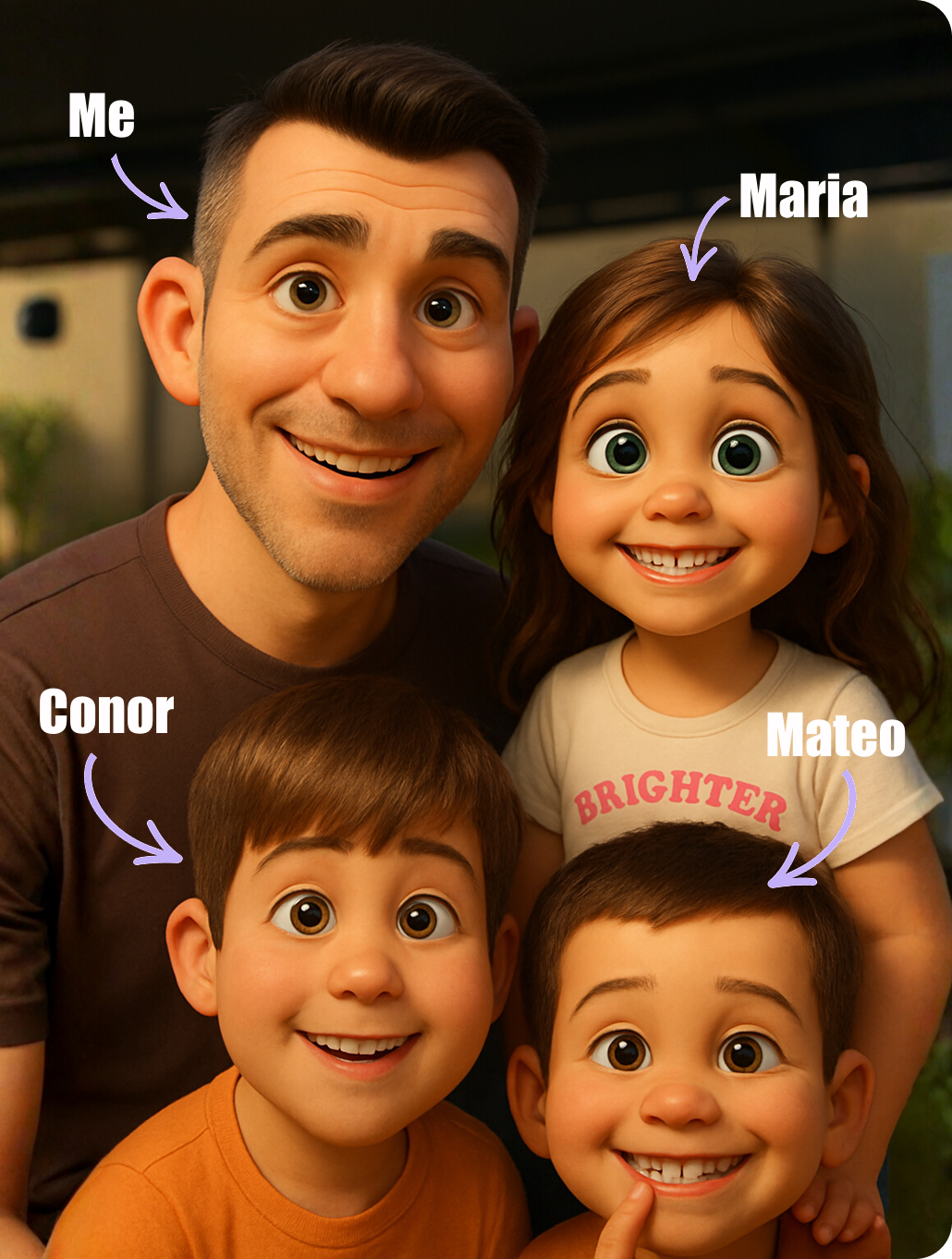
My kids have watched Finding Nemo approximately 847 times. So when Maria (5) and Mateo (8) asked if we could "make our own Nemo movie," I figured it was the perfect chance to test whether AI video tools could actually deliver cinematic results.
Spoiler: they can. And the look on my kids' faces when they saw their story come to life? Worth every minute.
We used Nano Banana (via Higgsfield AI) to generate consistent character images, then animated them with Kling 2.6's First and Last Frame feature. The whole process took about 90 minutes, and the kids felt like actual film directors making creative decisions throughout.
This guide gives you everything we used: exact prompts, settings, troubleshooting tips, and the workflow that actually worked for us.
AI Tools
- Nano Banana (via Higgsfield AI) - For generating consistent cartoon-style images. Free tier works fine for this project.
- Kling 2.6 - For animating images using First and Last Frame. You'll need credits for video generation.
Optional But Helpful
- Video editing software - We used Premiere Pro, but CapCut or iMovie work too.
- Google VEO 3.1 - Alternative for some scenes. Better colours, 8-second duration sweet spot.
Time Investment
- Image generation: ~20 minutes
- Video generation: ~45 minutes (including retries)
- Editing: ~25 minutes
- Total: ~90 minutes
Not sure which tool is right for your child?
Take our free 2-minute quiz and get personalized AI tool recommendations based on your child's age and interests.
Step 1: Create Your Story Scenes with Nano Banana
We planned 6 key scenes that would tell our complete story. The trick with Nano Banana is keeping your style instructions consistent across all prompts.
Scene 1: Nemo Discovers the Sunken Ship
Prompt: A cute clownfish with a small fin, bright orange with white stripes, swimming near a sunken old pirate ship covered in seaweed and barnacles, shafts of sunlight piercing through deep blue water, magical underwater atmosphere, tiny bubbles rising, coral reef visible in background, Pixar animation style, cinematic composition, 4K detail
Scene 2: Nemo Meets the Friendly Shark
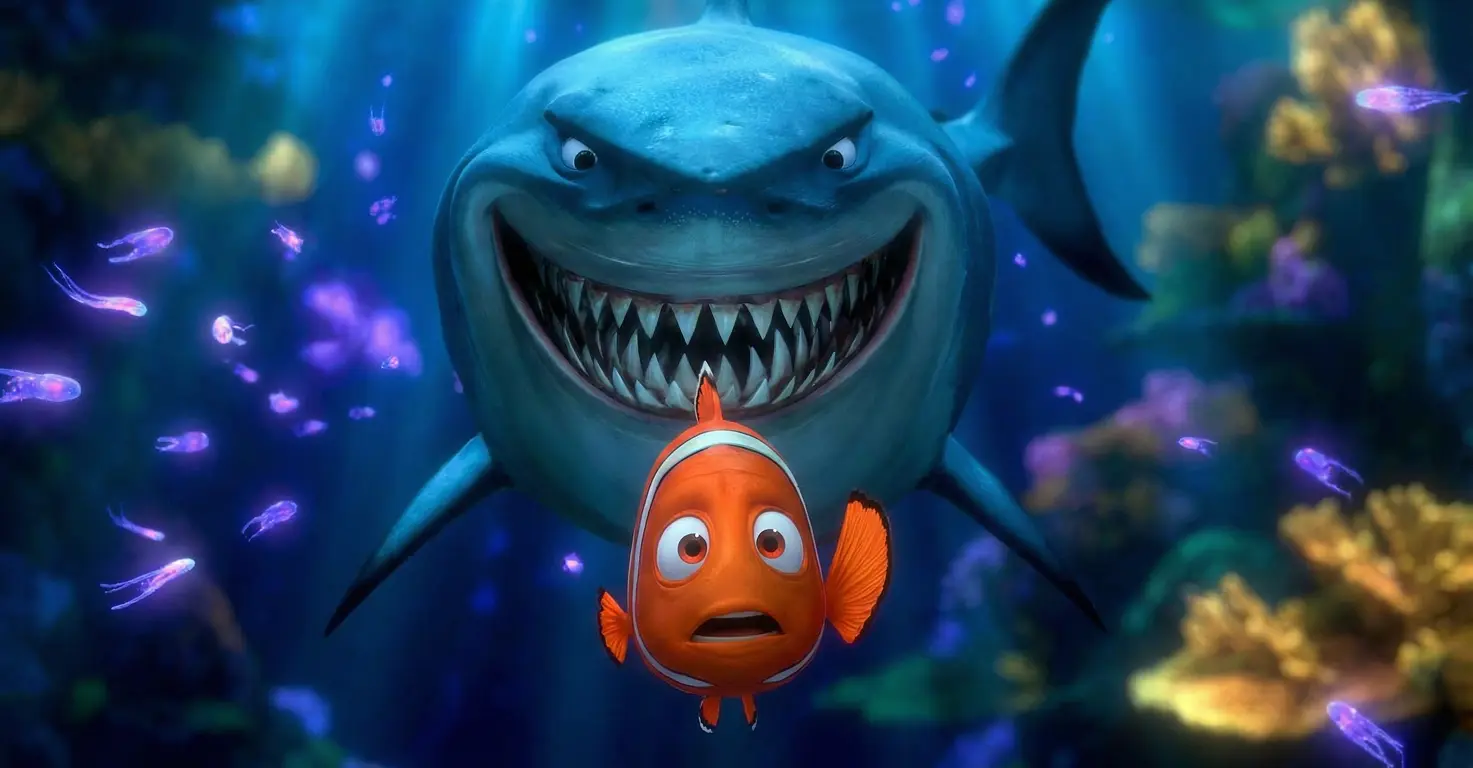
Prompt: A cute clownfish with a small fin meeting a large friendly great white shark with a goofy smile, inside a dark underwater cave with bioluminescent jellyfish glowing in background, the shark looking gentle and welcoming, rays of light coming from cave entrance, Pixar animation style, cinematic lighting, emotional moment, 4K detail
Scene 3: The Octopus Shows a Secret Path
Prompt: A cute clownfish with a small fin following a wise purple octopus through a narrow canyon in a coral reef, the octopus pointing with one tentacle toward a hidden tunnel, mysterious green glow coming from the tunnel, schools of tiny fish swimming overhead, Pixar animation style, adventure feeling, cinematic depth, 4K detail
Scene 4: Nemo Enters the Glowing Cave
Prompt: A cute clownfish with a small fin swimming into a magical underwater cave filled with glowing crystals and bioluminescent plants, wonder on his face, reflections of blue and purple light dancing on cave walls, ancient stone formations, Pixar animation style, magical atmosphere, cinematic wide shot, 4K detail
Scene 5: Nemo Finds the Golden Shell
Prompt: A cute clownfish with a small fin discovering a beautiful golden seashell resting on a velvet-covered stone pedestal inside the crystal cave, the shell glowing with warm golden light, Nemo's eyes wide with amazement, sparkles and particles floating in water, Pixar animation style, treasure discovery moment, cinematic lighting, 4K detail
Scene 6: Nemo Returns Home a Hero
Prompt: A cute clownfish with a small fin swimming proudly back to a beautiful anemone home carrying a small golden shell, his fish family waiting with happy expressions, sunset light filtering through water creating golden rays, peaceful coral reef setting, Pixar animation style, heartwarming reunion, cinematic golden hour lighting, 4K detail
Step 2: Animate with Kling 2.6 First/Last Frame
This is where the magic happens. Kling 2.6's First and Last Frame feature lets you control exactly how your animation flows between two images.
Video 1: Nemo Discovers the Sunken Ship
First Frame: Scene 1 image
Last Frame: Scene 2 image
Prompt: Smooth cinematic camera movement, the clownfish swims gracefully through the water approaching the sunken ship, gentle swaying of seaweed, bubbles rising slowly, underwater light rays shifting naturally
Negative Prompt: jerky movement, sudden cuts, distorted fish, morphing faces, unnatural motion, glitches
Video 2: Meeting the Friendly Shark
First Frame: Scene 2 image
Last Frame: Scene 3 image
Prompt: Gentle interaction between clownfish and shark, the shark gives a friendly nod, clownfish shows curiosity not fear, bioluminescent jellyfish pulse softly in background, warm emotional moment, smooth camera push-in
Negative Prompt: aggressive movement, scary expressions, jerky animation, morphing, distortion
Video 3: Following the Octopus
First Frame: Scene 3 image
Last Frame: Scene 4 image
Prompt: Octopus tentacles move gracefully as it guides the clownfish, swimming through the coral canyon, mysterious atmosphere builds, small fish scatter as they pass, smooth tracking shot following the pair
Negative Prompt: tentacle glitches, unnatural movement, morphing faces, jerky camera, distorted characters
Video 4: Discovering the Golden Shell
First Frame: Scene 4 image
Last Frame: Scene 5 image
Prompt: Clownfish swims slowly through crystal cave in awe, light reflections dance on walls, approaches the glowing golden shell with wonder, magical particles float in water, slow cinematic reveal
Negative Prompt: fast movement, glitches, morphing, distorted reflections, jerky animation
Video 5: The Hero's Return
First Frame: Scene 5 image
Last Frame: Scene 6 image
Prompt: Triumphant swim home carrying the golden shell, warm sunset lighting increases, family fish become visible waiting at anemone, joyful reunion moment, smooth camera pull-back to reveal happy ending
Negative Prompt: sad expressions, dark lighting, jerky movement, morphing faces, glitches
Step 3: Edit Your Short Film
Import all 5 videos into your editing software. We used Premiere Pro, but any editor works.
- Trim any awkward starts or ends from each clip.
- Add crossfade transitions between scenes (0.5 seconds works well).
- Add background music (we used royalty-free ocean ambience).
- Optional: Add title cards between scenes.
What Actually Worked
- Consistent style phrases matter. Keep "Pixar animation style, cinematic, 4K detail" in every prompt. This is what keeps Nemo looking like Nemo across all scenes.
- First/Last Frame is the secret weapon. Without this feature, your character would morph randomly. With it, you control exactly where your animation starts and ends.
- Negative prompts prevent disasters. Always include "morphing faces, jerky movement, distortion" in your negative prompts. Trust me on this one.
- 5-second clips often feel too short. We found 10 seconds gave more breathing room, but occasionally felt too long. Google VEO 3.1's 8-second sweet spot is genuinely useful if you have access.
What Didn't Work
- Rushing image generation. Our first attempts used vague prompts. The images looked fine individually but didn't match each other at all.
- Skipping the negative prompts. One video came out with Nemo's face slowly morphing into something unsettling. The kids were NOT impressed.
- Expecting perfection on first try. Budget for retries. We regenerated about 1 in every 3 videos to get results we were happy with.
Pro Tips from Our Testing
- Let kids choose the story beats. Maria insisted the shark had to be "really really friendly" which led to the goofy smile detail. It made the whole thing more theirs.
- Google VEO 3.1 has better colours. If you have access, it produces more vibrant underwater scenes. Kling 2.6 has better First/Last Frame control though.
- Save your prompts. We refined these over several attempts. Having them documented means you can recreate or extend your film later.
Common Issues and How We Fixed Them
Character looks different in each image
This happens when your style phrases aren't consistent. Copy-paste the same ending ("Pixar animation style, cinematic, 4K detail") to every prompt. Also keep character descriptions identical: "cute clownfish with a small fin, bright orange with white stripes."
Video has jerky or unnatural movement
Add more specific negative prompts. "Jerky movement, sudden cuts, unnatural motion, glitches" should be in every video prompt. If it's still happening, try regenerating - sometimes you just get unlucky.
Character's face morphs during animation
This is why First/Last Frame exists. Make sure both your starting and ending images have the character's face clearly visible and in a similar orientation. Add "morphing faces" to your negative prompts.
Transitions between scenes look jarring
Use the ending image of one video as the starting image of the next. This creates visual continuity. In editing, add 0.5-second crossfades between clips.
5-second videos feel too rushed
Choose 10-second duration in Kling 2.6, or use Google VEO 3.1 which has an 8-second option that hits a nice middle ground. You can always trim in editing, but you can't add time.
Kids getting bored waiting for generation
Have them work on the story or draw their own versions while videos generate. We turned the wait time into "what should happen next?" planning sessions.