


Seedance 2.0 Kids Animation: My 6-Year-Old's Drawing Came to Life
ON THIS PAGE
Subscribe To Get Weekly Family AI Discoveries

My 6-year-old daughter came home from school and drew a unicorn.
Pencil, paper, about ten minutes. The unicorn had a flowing tail, a striped horn, a little flower in the corner of the page, and scribbled grass beneath its feet. Standard 6-year-old-loves-unicorns fare.
Then I spent the next 90 minutes turning that exact drawing into a 33-second animated short film. Her unicorn lifting off the page, meeting a little girl in a storybook meadow, running off into a sunset. When I showed it to her, she said one word: "Wow." Then she asked "How did you do that? That looks cool."
She watched it three times in a row. She wants to do it with a cat next.
This guide is the full process. What I used (Nano Banana Pro for character design, Higgsfield's Seedance 2.0 for the video generation, CapCut for the edit), what worked on the first try, what failed and had to be rebuilt, and the two specific mistakes I made that you can avoid.
Quick overview
What you'll need
Tools:
- Nano Banana Pro (Google's image generation model, free via Gemini app) for the character sheet and scene reference frames
- Higgsfield's Seedance 2.0 for the video generation (140 credits approximate, on my existing monthly plan)
- CapCut for the final edit
- An iPhone or any smartphone for filming the practical opening footage
Materials:
- A pencil drawing by your child (paper, pencil, that's it)
- A flat surface, soft daylight, and 60 seconds to photograph the drawing properly
Parent skills:
- Willingness to regenerate when the first output drifts
- Comfort writing descriptive prompts (or happy to copy mine)
- Basic video editing: drag, trim, crossfade. Nothing advanced.
Time: About 90 minutes for your first attempt. Faster next time now that the workflow is clear.
Not sure which tool is right for your child?
Take our free 2-minute quiz and get personalized AI tool recommendations based on your child's age and interests.
The workflow in one sentence
Your child draws something. You design a consistent character and a few scene frames in Nano Banana. You generate 3-4 short video shots in Seedance using those images as anchors. You edit them together with a real clip of the drawing being made. That's the whole film.
The key move is using character references across every shot so the characters stay consistent. Higgsfield's Seedance has an @Elements feature that lets you reference uploaded images inline in your prompts. That's what makes this workflow possible. Without it, each shot would look like a different universe.
Step-by-step: Character design in Nano Banana
Step 1: Generate a character sheet for the child
Before generating any scene, design the on-screen character as a four-pose reference sheet: front, three-quarter front, three-quarter back, direct back. One prompt, one image. This becomes the master reference for every shot that includes her.
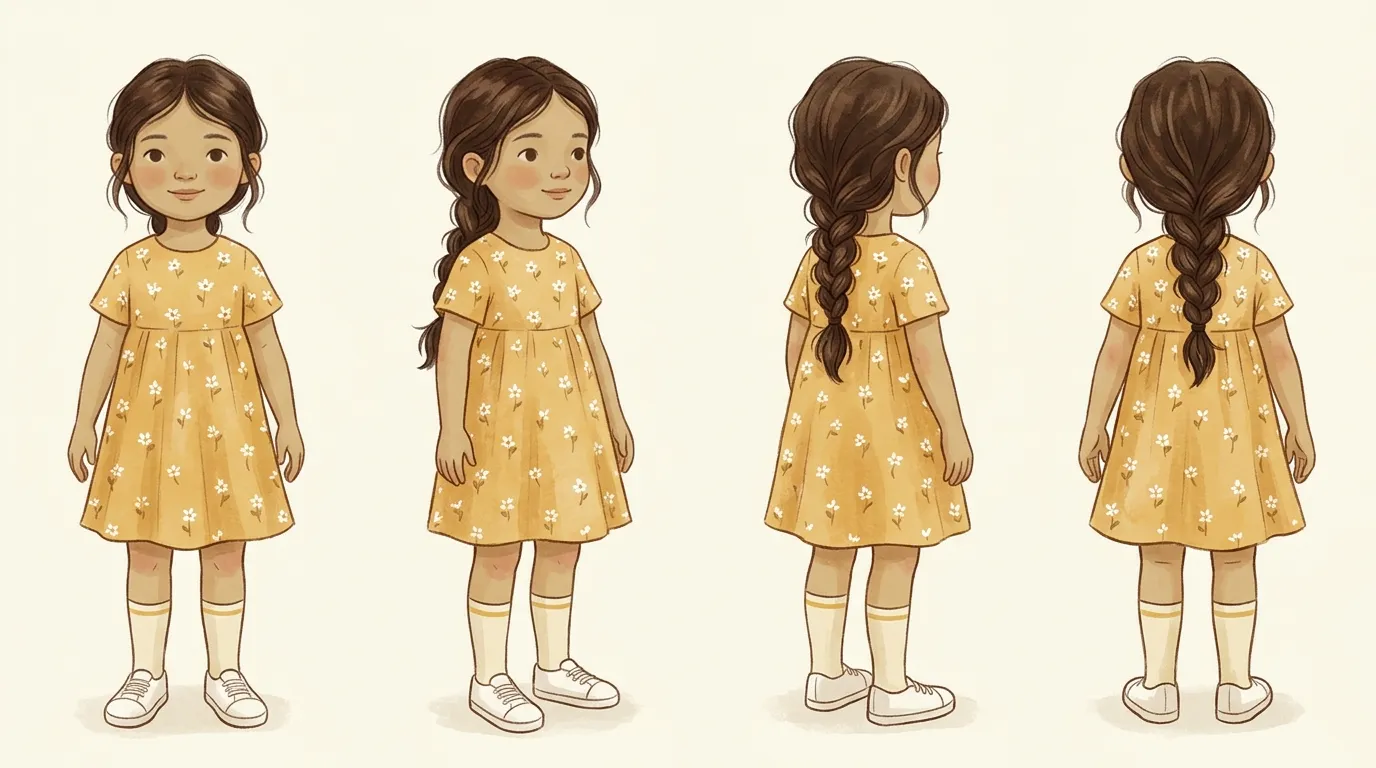
The prompt I used:
16:9 aspect ratio character reference sheet of a six-year-old girl, shown in four full-body poses on a plain cream background: front view, three-quarter front view, three-quarter back view, and direct back view. The exact same character in all four poses, same outfit, same hair, same proportions. She has a dark chestnut-brown messy braid down her back. Warm olive-beige skin. Wearing a soft mustard-yellow cotton dress with small white wildflowers. Cream knee-length socks with a thin yellow stripe at the cuff. White canvas sneakers. Soft, even, diffused daylight. Style: warm children's-book illustration, painterly watercolour texture, Beatrix Potter meets Oliver Jeffers.
Why each piece matters: The line "exact same character in all four poses" is the most important one. Without it, Nano Banana drifts between poses. Specific clothing details (mustard-yellow, small white flowers) give the model a visual signature it can repeat. Style references like "Beatrix Potter meets Oliver Jeffers" are recognised aesthetics the model can anchor to, unlike vague terms like "cute" or "magical."
Attempts needed: 3. The first two had inconsistent faces across poses or a third-pose that was too close to the back-only view.
💡 Parent Insight: My 6-year-old didn't sit for the character design process. I generated the sheet while she was at school, using her general appearance as reference. The character doesn't need to be a perfect likeness. It needs to be recognisable enough that she says "that's me" when she sees it.
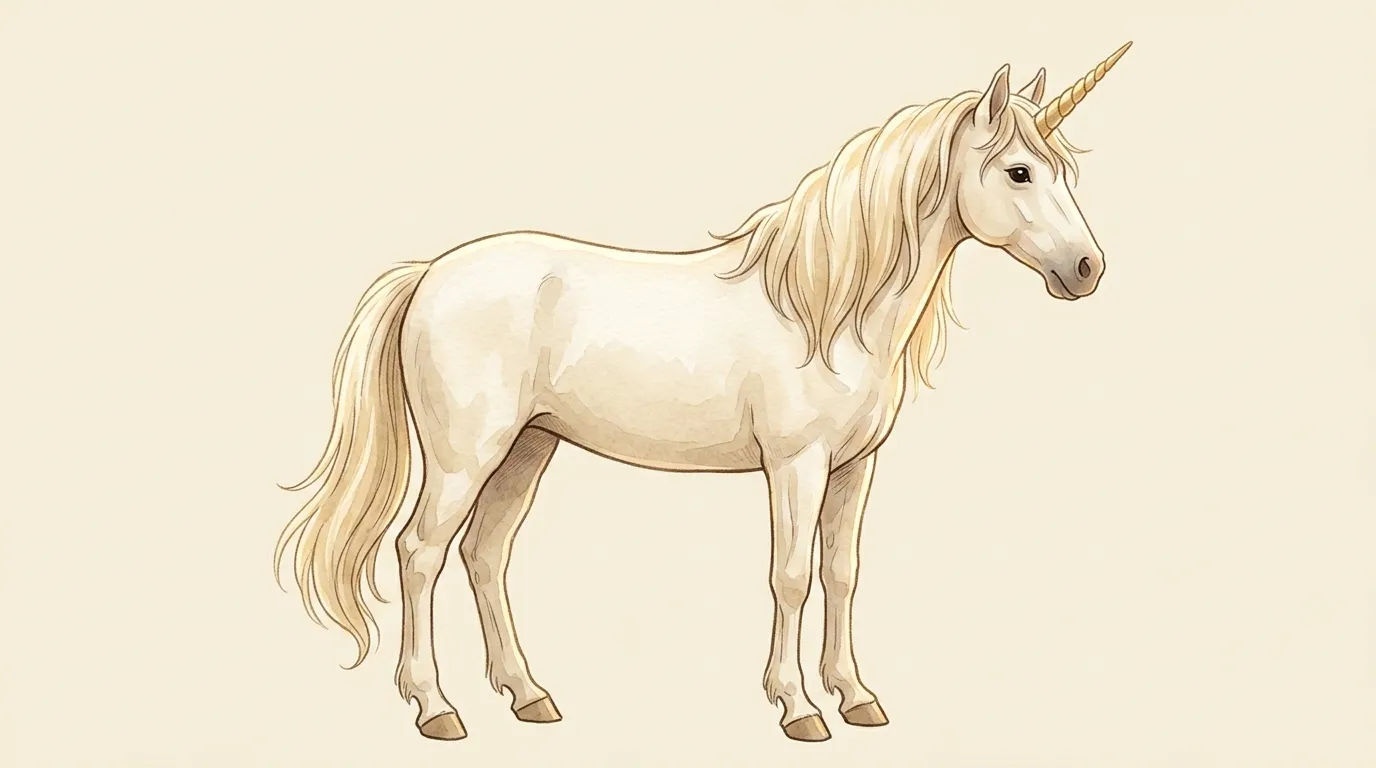
Step 2: Generate an isolated unicorn reference
Same principle applied to the unicorn. A clean side-view, neutral pose, cream background, no environment. This becomes the design anchor for every shot where the unicorn appears.
The prompt I used:
Full-body side view of a white unicorn standing in a neutral pose on a plain cream background. Cream-white coat, flowing pale-gold mane and tail, a single spiralled golden horn. Ears forward, one visible dark eye, calm curious expression. No background, no environment, no shadow. Style: warm children's-book illustration, painterly watercolour texture, Beatrix Potter meets Oliver Jeffers. Character reference sheet style. Aspect ratio: 16:9 landscape.
Pro tip: The words "no background, no environment, no shadow" are doing real work. Nano Banana loves to add atmospheric context, a hint of grass, a suggestion of sky. Explicit exclusion language forces clean isolation.
Step-by-step: Scene frames in Nano Banana
Each Seedance video shot needs a "start frame," the image the animation begins from. I generated three scene frames, one per meadow shot.
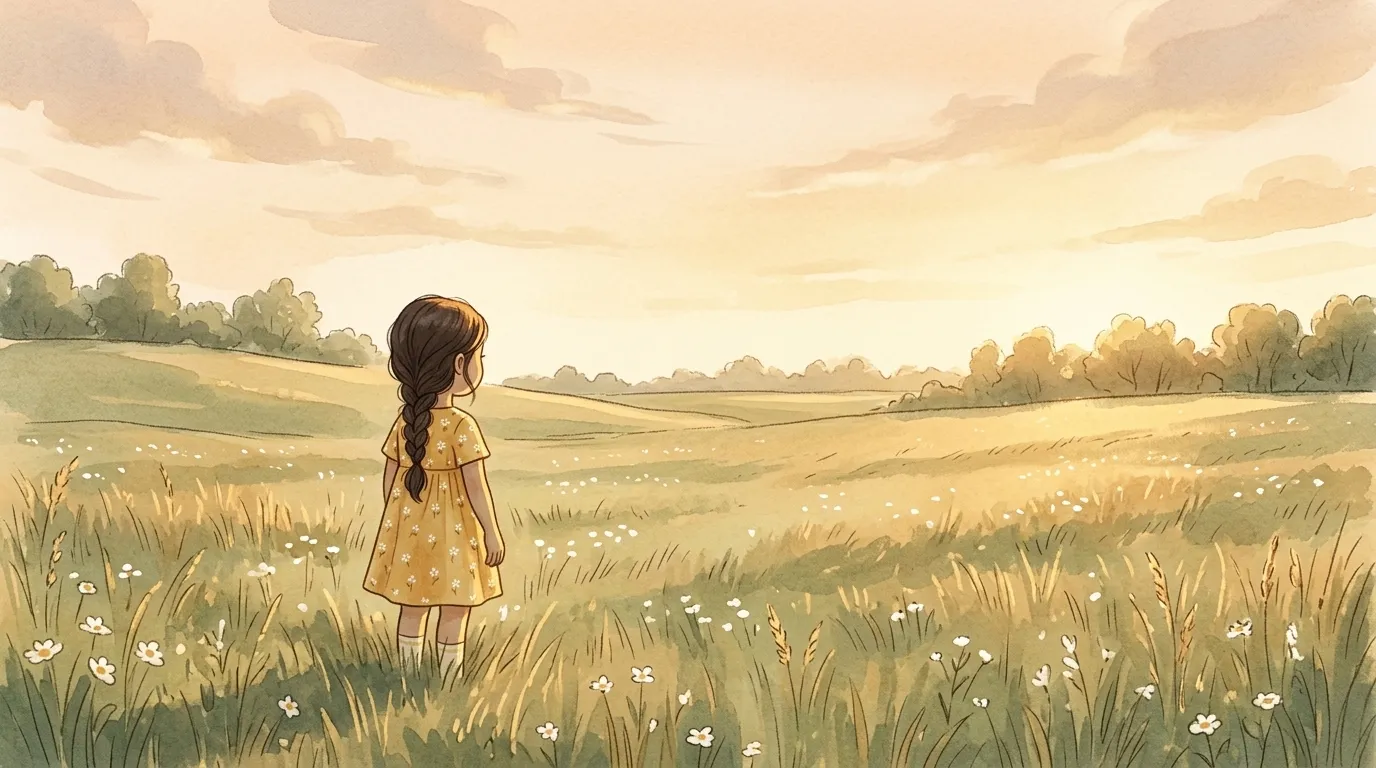
Step 3: The establishing shot
The girl alone in the meadow, small in frame, back to camera, looking out. Golden hour, storybook style, negative space on the right so the unicorn has somewhere to enter in the next shot.
Attached the character sheet as a reference image when generating this, which tells Nano Banana to use her exact design rather than inventing a new girl.
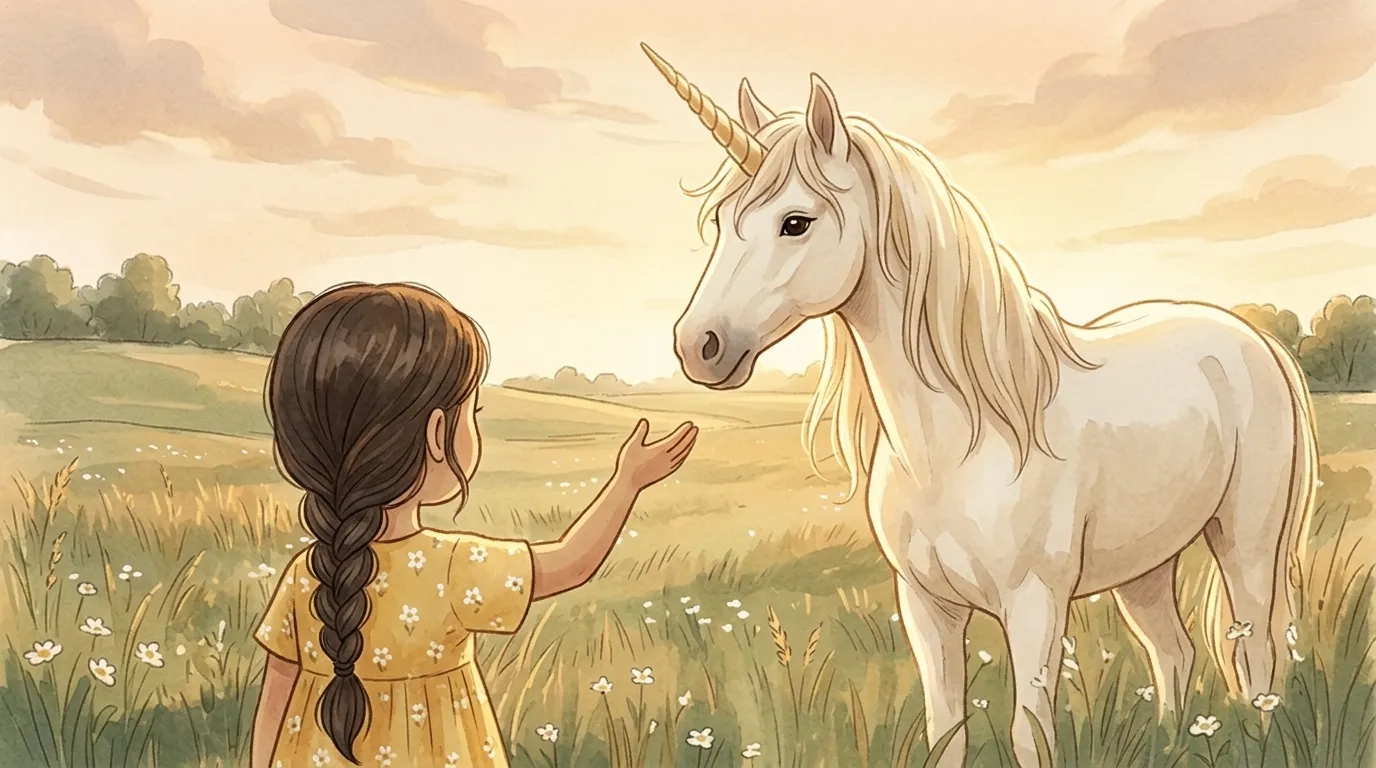
Step 4: The meeting shot
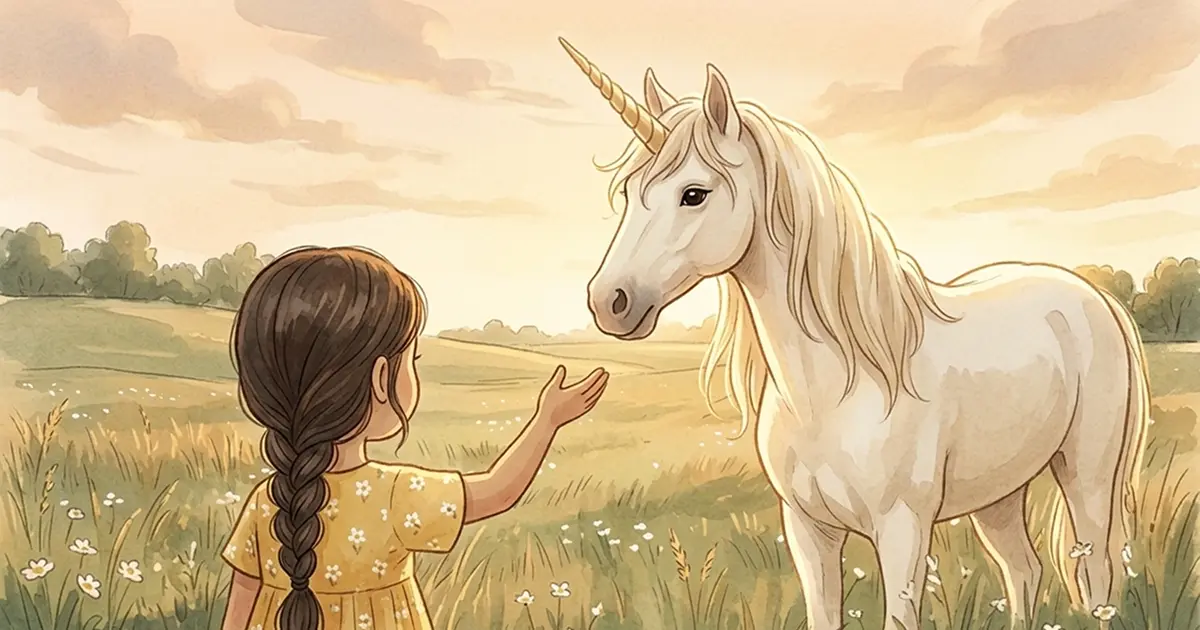
Over-the-shoulder framing. Girl on the left, hand outstretched. Unicorn on the right, head raised, nose above her fingertips. Critical detail: the prompt insists on "a visible empty gap of open air between her fingertips and the unicorn's nose" because the video shot animating from this frame needs the unicorn's head to lower to her hand. No gap means no motion.
Attempts needed: 2. The first attempt had the unicorn's nose already touching her hand, which would have killed the animation.
💡 Parent Insight: This was the shot that made my daughter gasp. The gap between hand and nose seems like a small detail, but it's the difference between a still image and a moment that unfolds. Always leave room for the motion to happen.
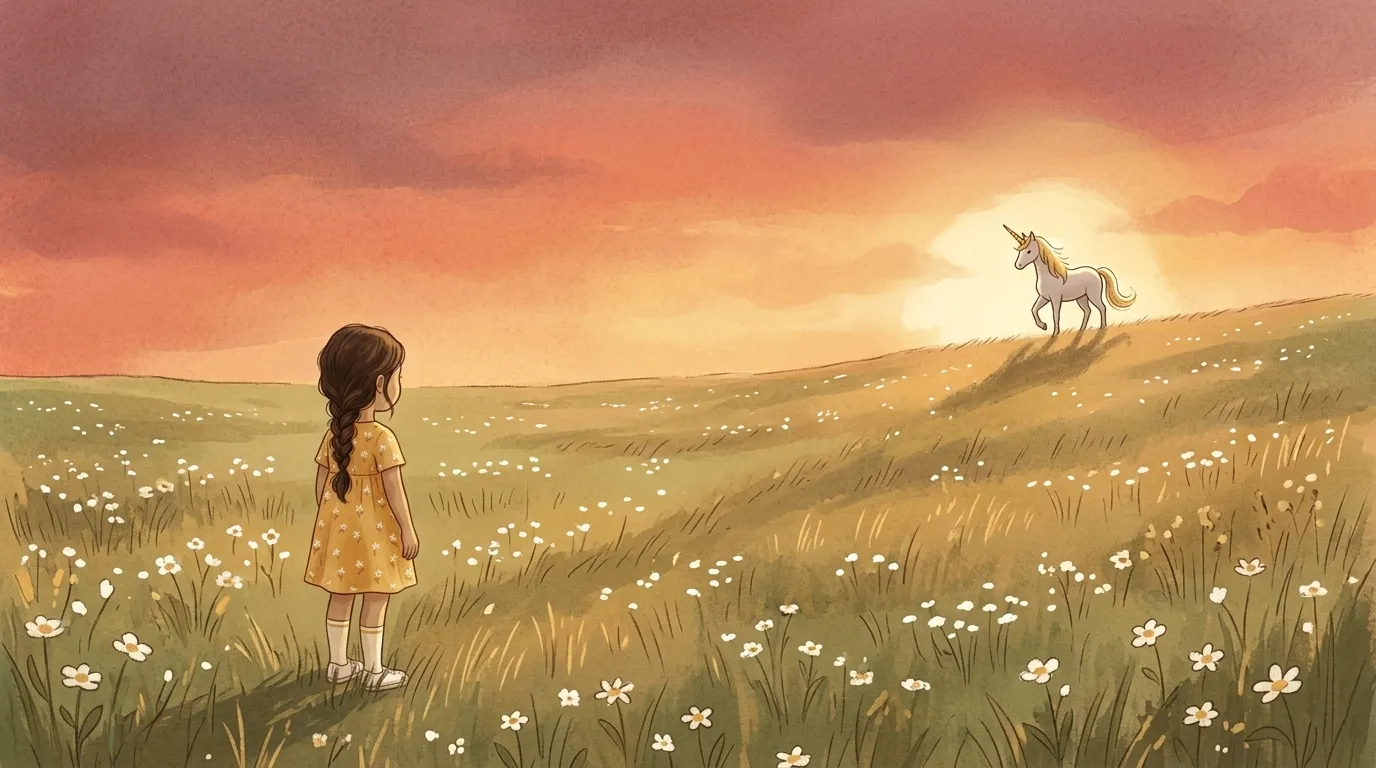
Step 5: The farewell shot
Wide landscape, late golden hour turning to sunset. Unicorn silhouetted on a distant hilltop, girl small in the lower-left watching. Distance between them is the entire emotion of the shot.
Why this frame works: The hilltop sets up the ending motion, the unicorn walking up to the crest and over. Without the hill already in the start frame, Seedance would have no reference for where "away" is.
Step-by-step: Video generation in Seedance
I used Higgsfield's Seedance 2.0 Fast model (720p, cheaper than the full 1080p version). For a newsletter-destined film where the practical footage is phone video anyway, 720p is plenty.
Before generating: Upload all your reference images as Higgsfield "Elements" and wait for them to clear eligibility review. I had six: the isolated unicorn, the character sheet, the overhead drawing photo, the three meadow frames. Every prompt below uses @-syntax to pull those references inline.
Step 6: Shot 2, the drawing comes alive (8 seconds)
Start frame: an overhead 16:9 landscape photo of the actual pencil drawing, shot flat on a plain table in even daylight.
The prompt:
Static overhead view of @drawing. Soft golden light shimmers along the pencil outline. The drawing transforms into @unicorn, a painterly watercolour storybook illustration of a calm unicorn with cream-white coat, pale-gold flowing mane, and spiralled golden horn. The unicorn gently rises from the page in a slow swirl of warm glowing particles, ending in a soft warm flare of light. Children's-book watercolour illustration style throughout, not photorealistic, not 3D, not cinematic. Gentle storybook magic, soft painterly texture.
Attempts needed: 2. (First attempt failed badly. See "What Didn't Work" below.)
Step 7: Shot 3, the unicorn enters the meadow (5 seconds)
Start frame: the meadow establishing shot.
The prompt:
Static wide landscape shot matching @meadow at golden hour. @unicorn, cream-white with pale-gold mane and spiralled golden horn, trots gently into frame from the right, moving slowly across the meadow grass, hooves brushing wildflowers. Golden hour rim-light from the right. Warm children's-book illustration style, painterly watercolour texture.
Attempts needed: 3. First two were rejected by Higgsfield's content filter because the original prompt included @girl references. Removing the child references from the prompt text (while keeping her in the start frame image) cleared the filter immediately.
Step 8: Shot 4, hand and mane (6 seconds)
Start frame: the meeting shot.
The prompt:
Over-the-shoulder shot matching @meeting. The girl stands still with her hand outstretched. @unicorn slowly lowers its head with gentle grace, nose moving down toward her open fingertips until they meet softly. A gentle breeze lifts her braid and the unicorn's pale-gold mane. A soft warm glow pulses quietly between her hand and the unicorn's nose at the moment of contact. Golden hour rim-light, warm children's-book illustration style, painterly watercolour texture.
Attempts needed: 1. First try landed.
Step 9: Shot 5, the farewell (8 seconds)
Start frame: the hilltop shot.
The prompt:
Static wide landscape shot matching @farewell. @unicorn walks slowly up the final slope of the distant hill, silhouetted against the warm sunset. At the crest, the unicorn pauses, turns its head gently back toward @girl for one last look, then continues walking over the ridge and out of sight. The girl stands still in the meadow, watching. The sun is low and hazy, long shadows stretching across the grass. Warm children's-book illustration style, painterly watercolour texture.
Attempts needed: 1. The head-turn-back beat landed beautifully on the first generation.
Step-by-step: Editing in CapCut
Step 10: Assemble the practical opening
I filmed my daughter drawing the unicorn from over her shoulder. Her hand, the pencil, the emerging unicorn on the page. I specifically avoided any frames showing her face directly, to keep consistent with my usual approach to kids' privacy online.
I used about 8 seconds of that footage: a close shot of the pencil moving, then a pull-back to the near-finished drawing. I ended on a slow push-in toward the drawing, this becomes the transition point.
💡 Parent Insight: I've done enough of these projects now to know: film the real-world footage first. Every time I've generated the AI content first and tried to match practical footage afterwards, something doesn't line up. Wardrobe, lighting, angle. Real footage first, AI second.
Step 11: Stitch in the Seedance shots
Practical footage, then a white flash (0.3 seconds), then Shot 2, straight cut to Shot 3, crossfade to Shot 4, straight cut to Shot 5, fade to black.
The crossfade between Shot 3 and Shot 4 was a necessary fix. Shot 3 ends with the girl's hand at her side, Shot 4 starts with her hand already outstretched. A straight cut would have looked like a continuity error. The crossfade dissolves the position change into a soft transition.
Step 12: Add music
I added a soft, storybook-feeling instrumental track over the full 33 seconds, with a light audio duck during the farewell so the visual silence could breathe.
What worked
Character references solved the consistency problem
The single biggest reason this film is coherent is that every shot anchored back to the same isolated unicorn and the same character sheet. Without those references, each Seedance generation would have produced a slightly different unicorn and a slightly different girl, and the final film would feel like a collage.
Lesson: Design your characters once, as clean isolated references. Every shot points back to those anchors.
Painterly style hid the resolution limits
Using the 720p Seedance Fast model saved credits but softens detail. Storybook watercolour illustration is forgiving of softness. The painterly texture absorbs resolution loss. A photorealistic film at 720p would have looked cheap. At 720p in storybook style, it looks intentional.
Lesson: Match your style choice to your output resolution. Stylised art hides technical limits that photorealism exposes.
The practical opening grounded the whole film
Eight seconds of real pencil on real paper made the magic that followed land harder. If every frame had been AI-generated, the "drawing comes alive" premise would feel weightless. The real drawing is the soul of the film.
Lesson: Even when you can generate everything with AI, one grounding practical moment makes the AI work feel earned.
What didn't work
Shot 2's first attempt was photorealistic CGI, not storybook
The first version of the drawing-comes-alive shot produced a dramatic rearing unicorn with a brilliant white mane, golden light rays, and a CGI-polished look. Completely wrong for the film. The problem: the start frame is a pencil sketch on paper, which doesn't anchor any particular illustrated style. Seedance defaulted to its training data's "epic unicorn reveal" pattern.
Fix: I rewrote the prompt with explicit style anchors, "painterly watercolour storybook illustration," "calm," "not photorealistic, not 3D, not cinematic." The second generation landed in the correct style.
Credits wasted: 28. About 10 minutes of wrong output.
Lesson: If your start frame doesn't carry style information (like a pencil sketch), you must anchor the destination style aggressively in the prompt. Both positive ("painterly watercolour storybook") and negative ("not photorealistic, not 3D, not cinematic").
The character sheet didn't match my daughter's actual clothes
I generated the character sheet first, a girl in a mustard-yellow dress, and then filmed my daughter drawing the unicorn. She was wearing a pink top. In the final edit, the practical footage shows a pink top, and the animated character wears a yellow dress.
The film still works. Viewers still read the handoff from "real girl drawing" to "animated girl in meadow" because the age, hair, and vibe match. But the clothing mismatch is a tiny continuity crack that shouldn't have been there.
Fix if I were doing it again: Film the practical footage first, note exactly what your child is wearing, then generate the character sheet to match. Or have your child change clothes before filming to match the outfit you've already designed.
Lesson: Practical footage and AI footage share a visual universe. Plan wardrobe continuity between them from the start.
The Shot 3 to Shot 4 hand-position mismatch
Shot 3 (unicorn entering the meadow) ends with the girl standing still, arms at her sides. Shot 4 (the meeting) starts with her hand already raised toward the unicorn. A straight cut would have looked jarring.
Fix: A short crossfade in CapCut smooths the position change. The viewer reads the dissolve as a time-passing beat rather than a continuity error.
Lesson: When you're stitching independent Seedance generations, plan for subtle position mismatches between your start frames. Either match them precisely when generating (hand already raised in both) or plan to dissolve between them.
Why this workflow matters for families
There's an easier version of this project. I could have skipped the practical footage, skipped the character sheet, and generated every frame with AI. It would have taken half the time. It probably would have looked fine.
But what makes this film matter isn't that AI made it. It's that my daughter drew a unicorn and then got to watch it exist.
That's the part worth protecting. The drawing is hers. The story, "a unicorn I made, in a world," is hers. The AI is doing illustration and animation labour she can't do yet, but the creative centre of the film is her pencil on her page.
Every time I do one of these projects, I come back to the same principle: AI is most valuable as a collaborator that amplifies what your child already made. It's least valuable as a replacement for the thing your child could make themselves.
She wants to do it again with a cat next. Which means the workflow worked. Not because the video looked slick, but because she saw her own creation come to life, and her immediate reaction was to make another one.
💡 Parent Insight: The moment that matters isn't the finished film. It's when your child sees their drawing move for the first time. Everything else, the character sheets, the prompt engineering, the editing, is just the scaffolding to get to that 3-second reaction.
Tips and tricks for doing this yourself
Before you start:
- Let your child finish the drawing before you start generating anything. The drawing is the anchor. Design the film around what they made, not the other way around.
- Photograph the finished drawing properly. Phone landscape-mode, directly overhead, flat on a plain surface, even daylight, no hotspots. This photo becomes the start frame of your hero shot.
- Film the practical opening before generating the character sheet, so you can match the AI character's clothes to what your child was actually wearing.
During the process:
- Use references relentlessly. Every single shot should anchor back to a character reference, a scene reference, or both.
- Name your elements memorably. I used @unicorn, @girl, @meadow, @meeting, @farewell. Don't use generic names like @image1 or you'll confuse yourself.
- Generate the lowest-cost, lowest-resolution version first to check composition. Upgrade to full-quality only when you know the shot works.
What I'd do differently next time:
- Film practical opening before character sheet. This was my biggest avoidable mistake.
- Write all four Seedance prompts before generating any of them, so continuity between shots (hand positions, unicorn positions) is planned rather than discovered.
- Pick a simpler character for the child's drawing on the first attempt. A unicorn has a horn, a mane, and four legs, lots of detail to track. A cat would have been easier.
Troubleshooting
Problem: Seedance rejects the prompt for no obvious reason
Solution: Content filters on AI video tools are sensitive around descriptions of children. Remove words like "girl," "boy," "child," or "kid" from the prompt text itself. Your character reference image will still carry the character into the shot. The prompt needs to describe what the scene is doing, not who's in it.
Problem: The generated unicorn looks completely different from the reference
Solution: Your start frame is fighting the reference. If the start frame is stylistically weak (like a pencil sketch), the model has nothing to anchor to and will drift toward its training data's default. Strengthen the prompt with explicit style language: "painterly watercolour storybook illustration, not photorealistic, not 3D, not cinematic." If it still drifts, regenerate with a stronger scene-style reference as an additional element.
Problem: The unicorn's head is already touching the girl's hand in my start frame
Solution: Seedance animates forward from the start frame. If the moment of contact is already in the first frame, there's no motion to generate. Regenerate the start frame with explicit gap language: "a visible empty gap of open air between her fingertips and the unicorn's nose."
Problem: Hand or body positions don't match between two consecutive shots
Solution: Use a short crossfade (0.3-0.5 seconds) in your editing tool to dissolve between them. The viewer reads the dissolve as a passage of time rather than a continuity error. The longer-term fix is matching positions precisely when generating start frames.
Problem: The AI character's outfit doesn't match my real footage of my child
Solution: Either regenerate the character sheet to match what your child was wearing (attach a photo of their outfit as a reference), or reshoot the practical footage with your child in the outfit the AI character is wearing.
Problem: The final film feels disjointed even though each shot is fine
Solution: Check that every shot uses the same style language. "Warm children's-book illustration, painterly watercolour texture" appearing at the end of every Seedance prompt is doing critical continuity work. Inconsistent style language is the most common reason films feel like a collage of unrelated clips.