


We built a free times tables game with AI for my son's Friday test

ON THIS PAGE
Subscribe To Get Weekly Family AI Discoveries

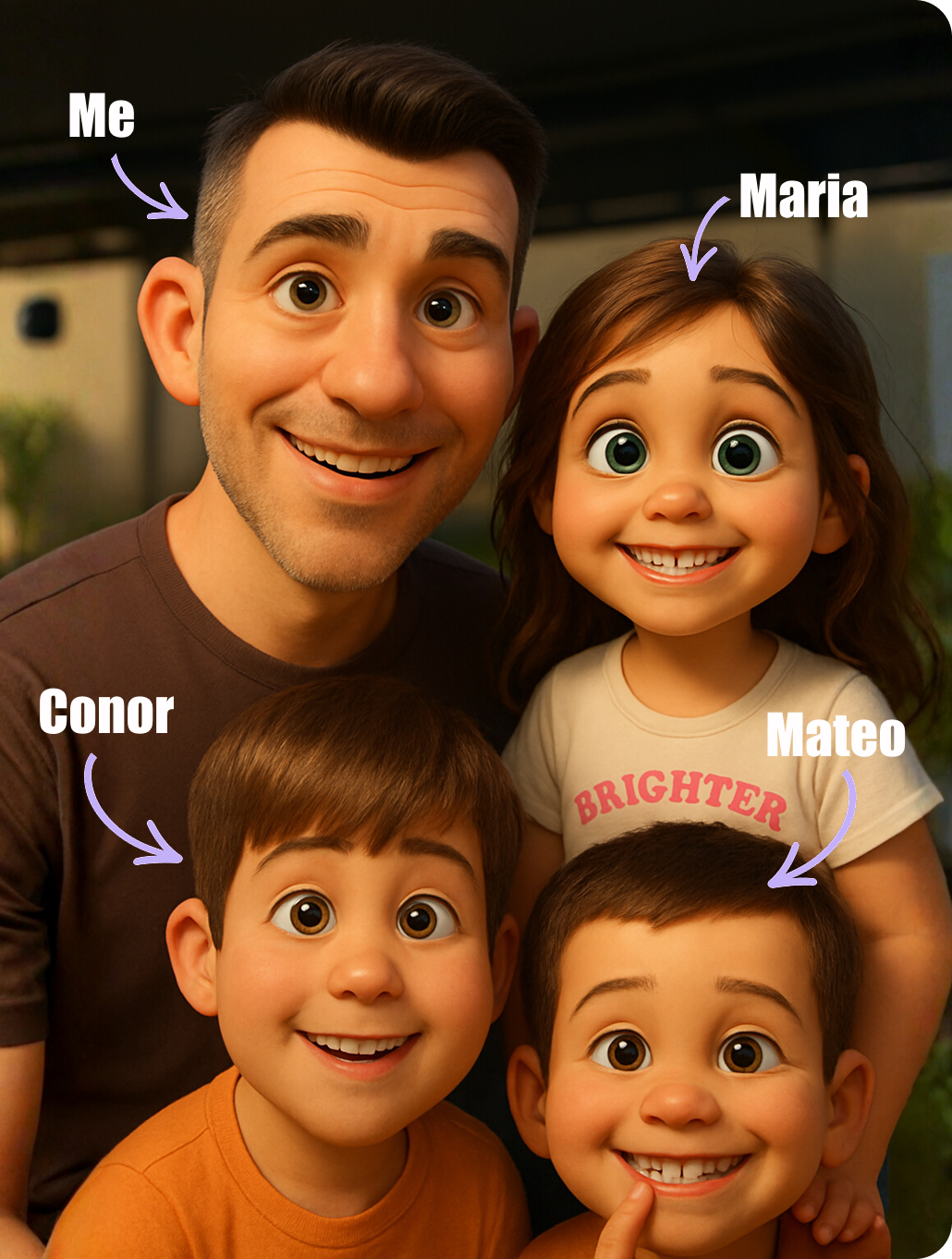
My son Mateo is in third class in an Irish primary school, and every Friday his class does a times tables test. The teacher calls out a question and gives the children about 5 seconds to write down the answer. This week it is the 2 times tables, next week the 3s, and a new table every week for the next 12 weeks.
I wanted something he would pick up by himself instead of a worksheet, so I described the game I had in mind to Claude, the AI assistant from Anthropic. It built a working web app in about an hour. We called it Tables Champ. It is free, it runs in any browser, and there are no accounts or names to type in.
On a Tuesday after school, Mateo and his friend tested it at our kitchen table. Both boys found the 5-second timer too fast on a new table, so we slowed it down, and by the end of the session both of them scored 20 out of 20 on a Friday test at the full 5-second speed.
This guide shows you how to use the game for your own child's weekly test, the timer settings that made the difference for us, and what I would change if you want to build your own version.
Quick overview
- Time: 10-15 minutes a session, three or four times a week
- Cost: Free to play. I built it with Claude on a paid plan.
- Difficulty: Beginner
- Age range: 7-10, or whoever is learning their tables
- Key learning: Slow the timer down for a new table, then speed it up to test speed before Friday
- What you'll create: A weekly routine of practice rounds followed by a timed test at school speed
Play it here: Tables Champ, the free times tables game
What you'll need
Tools:
- Tables Champ (free, no sign-up)
- A tablet or phone. We used an iPad, and the big on-screen number pad works well with small fingers.
- 10-15 minutes, three or four times a week
Your child's input:
- The table their class is learning this week
- How long the teacher gives for each answer. Ask your child or the teacher. Mateo's teacher gives about 5 seconds.
Parent skills:
- None. You set the table and the timer once, and the game remembers them.
Optional:
- A friend or sibling to take turns with
- A Claude account if you want to build your own version (see "How I built it" below)
Not sure which tool is right for your child?
Take our free 2-minute quiz and get personalized AI tool recommendations based on your child's age and interests.
Step-by-step process
The routine has two halves. Early in the week your child practises the new table with no clock, and later in the week they take the timed test at the same speed as school. The game handles the hard part, which is working out which answers your child keeps getting wrong and asking those again.
Step 1: 📝 Set this week's table
Open Tables Champ. The big card at the top of the home screen says "This week at school". Tap the arrows until it shows the table your child's class is learning. The game saves this on the device, so next time your child opens it the right table is already waiting.
Step 2: 🎯 Start with Practise, not the test
Tap Practise on the same card. Practice mode has no timer by default. Your child types each answer on the number pad and taps Check. A right answer gets a green panel, a sound and a jump from Tally, the little orange × character. A wrong answer shows the correct fact, for example "7 × 8 = 56", and the game asks that question again three questions later with a "Second chance" label.
Step 3: ⏱️ Match the timer to your child, not the teacher
Tap the gear icon at the top of the home screen. The first setting is Time per question in a test, with options of 3, 5, 7, 8, 10 and 15 seconds. It starts at 5 seconds to match the school test.
This is where our session changed. Mateo's friend did his first test on the 2 times tables at 5 seconds and scored 17 out of 20. Then he tried the 4 times tables, and 5 seconds was too fast for a table he had not practised as much. We changed it to 8 seconds and he scored 15 out of 20. Mateo had the same problem with the 3 times tables, so we set his timer to 7 seconds and he scored 20 out of 20.
💡 Parent Insight: The same pattern happened with both boys. A new table was too fast at 5 seconds, a slower timer of 7 or 8 seconds got them scoring well, and then they went back to 5 seconds for the Friday test and got full marks. Start slow on a new table and speed up later in the week.
Step 4: 🏁 Run the Friday test at 5 seconds
When your child is getting most answers right at the slower speed, put the timer back to 5 seconds and tap Friday test on the home card. The test is 20 questions in a random order, 5 seconds each, with a draining colour bar instead of a ticking countdown. There are no second chances in the test, which is the same as school.
Result: Both boys took the Friday test for this week's table at 5 seconds, and both scored 20 out of 20. A single-table test also awards up to three stars, and those stars stay on the table grid on the home screen.
Step 5: 🔁 Use the results screen
After each round the results screen shows the score, the best streak, the fastest answer and the average answer time. Underneath is a list called "Ones to practise" with every fact your child missed and its answer. The Practise the tricky ones button starts a short round using only those facts.
💡 Parent Insight: The boys treated the results screen like a leaderboard. They took turns on the same iPad and compared their scores at the end of each round, which turned revision into a competition between two friends.
Step 6: 👀 Check the grown-ups screen once a week
At the bottom of the home screen, tap For grown-ups. It lists the trickiest facts, the ones your child has missed most, and shows accuracy for each table from 1 to 12. The Practise these now button starts a round with those facts. A missed fact keeps coming back more often until your child gets it right three times in a row.
Step 7: ⬆️ Move up a table each week
When the class moves on, tap the arrow on the home card to the next table. Earlier tables stay in the game. Once your child has done a few, use Pick your tables to mix two or three tables together, or Mix it up for random questions. Mix it up has three levels: Easy is the 1, 2, 5 and 10 tables with 10 seconds, Medium is tables 1 to 10 with 7 seconds, and Hard is tables 1 to 12 with 5 seconds plus questions like "? × 4 = 28".
What worked
The streak animations
Three, five and ten right answers in a row each bring up a banner and a burst of confetti. The 10 in a row animation was the feature that stood out most in our session. Between them the boys played five full 20-question tests in one sitting.
Lesson: A small reward every few questions keeps a child going between the bigger reward at the end.
An adjustable timer
A fixed 5-second timer would have ended the session early for both boys. Changing it to 7 or 8 seconds let them get the facts right first and then build speed.
Lesson: Treat 5 seconds as the goal for Friday, not the starting point on Monday.
Two children, one iPad
The boys took turns on one iPad and compared results screens. Nobody had to log in, type a name or wait for an account.
Lesson: Taking turns on one device gives you a head-to-head game without any setup.
What didn't work
5 seconds on a brand new table
Both boys found 5 seconds too fast on a table they had not practised as much, the 3s for Mateo and the 4s for his friend.
Time wasted: One round each, about 2 minutes
Lesson: Practise with no timer, or a slower timer, before the first test on a new table.
The first mascot looked like Duolingo's owl
I asked for a game that felt like Duolingo, and the first version had a round green character with big eyes and orange feet. Claude drew it from scratch, but it looked too close to Duolingo's owl. I asked for something different, and we replaced it with Tally, an orange multiplication sign whose top strokes are arms and bottom strokes are legs.
Time wasted: About 10 minutes
Lesson: If you ask an AI for "something like" a famous app, check the result does not copy its characters or logo.
No shared leaderboard yet
Progress is saved on each device, so friends on different iPads cannot see each other's scores. This is deliberate for privacy, but it means friends in different houses cannot compete yet.
Lesson: For now, compare results screens side by side. A leaderboard with preset nicknames is planned for version two.
How I built it
I did not write any code. I described the game to Claude in plain English: a setting to change the answer time, Duolingo-style animations for right and wrong answers, bright colours, a way to pick a table, a random mode from 1 to 12 with easy, medium and hard, and no accounts. I also asked Claude what I was missing.
Claude suggested three things I had not thought of: a Friday test mode that copies the school test, a big on-screen number pad because typing on a tablet keyboard eats into 5 seconds, and asking missed questions again until they stick. It then wrote the app, tested it in a browser, and put it online. The whole build took about an hour.
Platform comparison
Times Tables Rock Stars (school subscription)
- Pros: Used by many schools, with class leaderboards
- Cons: Needs a school or paid login
- Best for: Children whose school already subscribes
Hit the Button (free in the browser)
- Pros: Quick-fire rounds, no sign-up
- Cons: A fixed 60-second round, with no way to match a teacher's timing
- Best for: A quick warm-up
Tables Champ (free, no sign-up)
- Pros: Per-question timer you can set from 3 to 15 seconds, a Friday test mode, missed facts come back until they stick
- Cons: No shared leaderboard yet, and progress stays on one device
- Best for: Practising for a weekly class test with a fixed time per answer
The per-question timer was the deciding factor for us. Mateo's test gives 5 seconds for each answer, and Tables Champ is the only one of the three where he can practise at that exact pace.
Final verdict
For a child with a weekly tables test, this routine works. Two boys went from "too fast" to 20 out of 20 in one afternoon session by starting at 7 or 8 seconds and finishing at 5.
The game keeps your child's progress on your device and nowhere else. There are no accounts, no names, no chat and no adverts.
It does not replace learning the tables in class. It gives your child a fun way to rehearse the Friday test until the speed feels normal.
Getting the most out of Tables Champ
Before you start:
- Ask your child how the test works in their class: how many questions, and how long they get for each one. Match both in Settings.
- Add the game to the home screen. On an iPad, tap Share, then Add to Home Screen, and it opens like an app.
During the week:
- Monday and Tuesday: Practise with no timer.
- Wednesday: the test at a slower speed, 7 or 8 seconds.
- Thursday: the Friday test at 5 seconds, then Practise the tricky ones.
- Keep sessions to 10-15 minutes, and stop while your child still wants another go.
What I'd do differently:
- Start every new table at 8 seconds instead of 5.
- Set up turn-taking from the start. Two friends comparing best streaks did more for motivation than any setting.
Common issues and solutions
Problem: The timer is too fast and my child is guessing
Solution: Tap the gear icon and change Time per question to 7 or 8 seconds. Move it back to 5 seconds once they get 17 or more out of 20.
Problem: The stars and progress have disappeared
Solution: Progress is saved in the browser on that device. Private browsing, clearing the browser history, or switching to another browser or device starts a fresh game. Use the same device and browser each time.
Problem: There is no sound
Solution: Check Sound is On in Settings. On an iPad or iPhone, the silent switch or Silent mode mutes the game, so turn it off.
Problem: We are playing on a laptop
Solution: Type answers with the number keys and press Enter to check. Backspace deletes a digit.
Problem: The class only learns up to × 10
Solution: In Settings, set Questions go up to × 10. The game then stops at 10 × for every table.