


I Put Myself in an AI Street Basketball Video (My Kids Howled)
ON THIS PAGE
Subscribe To Get Weekly Family AI Discoveries

I wanted to drop myself into a video that never happened. A scrappy street basketball game, me in a headband, posting up a player a foot and a half taller than me.
So one afternoon I built it with my three kids watching over my shoulder. Two AI tools, four steps, about 30 minutes start to finish. I used Magnific (formerly Freepik) running the Nano Banana 2 model for the images, and Higgsfield for the 15-second video.

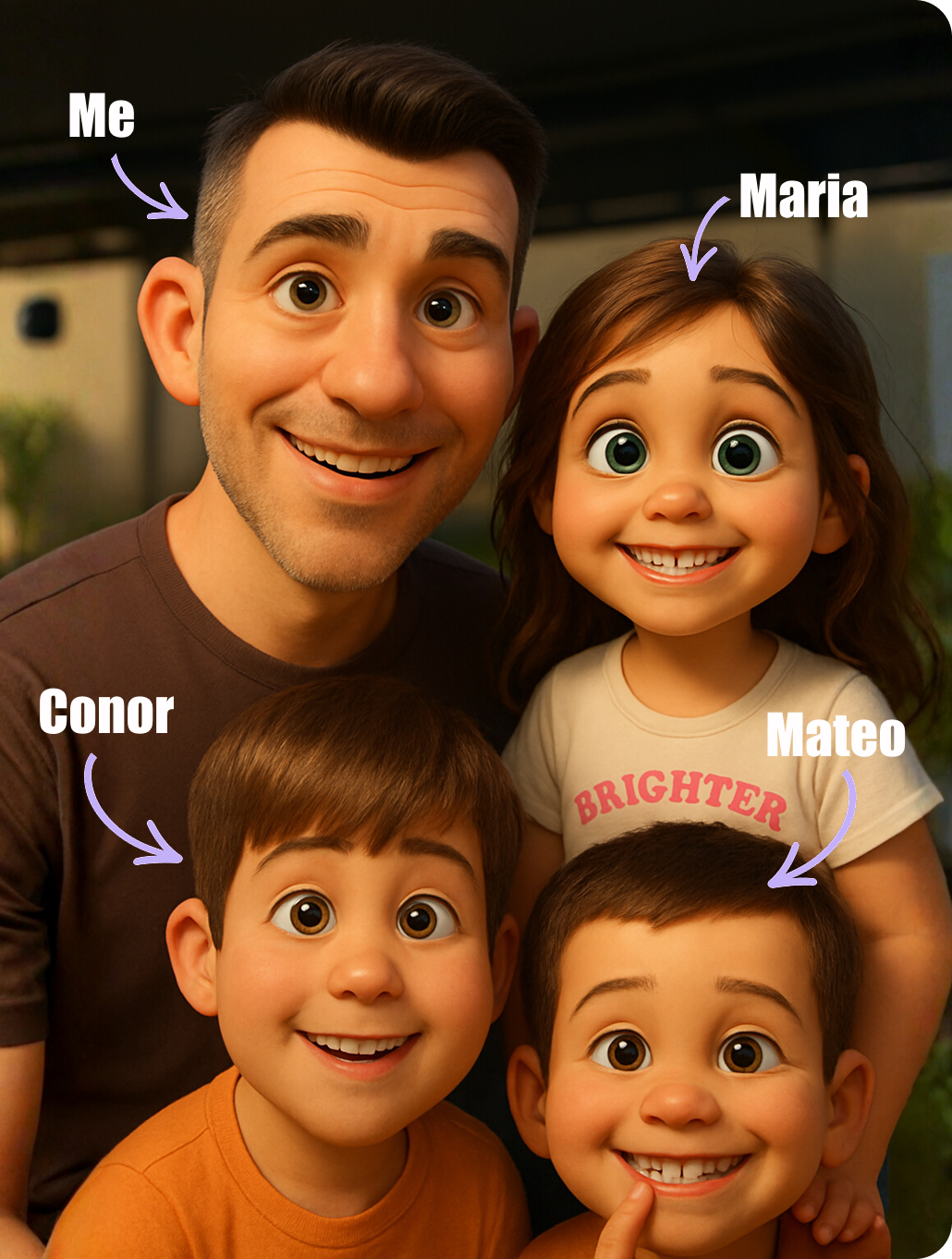
It was not flawless. The dunk never goes in, and one image lost a bit of my likeness. But Maria (6) took one look and shouted "Papa ate all the pies", and all three of them watched it on repeat with giggles and lots of laughter. That was the win.
This guide gives you the exact four-step workflow and every prompt, so you can put yourself, or your child, into any scene you like.
Quick overview
What you'll need
Tools:
- Magnific for the images, running the Nano Banana 2 model. The Essential plan is €72 per year and gives about 96,000 credits. Each image task costs roughly 75 credits
- Higgsfield for the video. One 15-second clip cost about 67.5 credits
Your input:
- A clear, well-lit photo of whoever will star, face visible
- One simple idea: a scene and an action. A sport, a chase, a dance
Parent skills:
- None beyond copy-paste. You provide the prompts, the AI makes the art
Time:
- About 30 minutes for your first one, faster after that
Not sure which tool is right for your child?
Take our free 2-minute quiz and get personalized AI tool recommendations based on your child's age and interests.
Step-by-step process
The trick is to build it in pieces. Make each character and the background as separate still images first, get them looking right, then hand them to the video tool as references. Four steps.
Step 1: Generate your two characters
In Magnific, set the model to Nano Banana 2 and upload your photo so the character looks like you. Generate the star first, then the opponent.
The star (prompt):
A vertical, full-body studio photo of the person in my reference image as a 1970s street basketball player with a slightly plumper build, plain white background. A red, white and blue headband, a well-groomed beard, a red retro mesh jersey reading STREETS with the number 74, royal blue satin shorts with red and white side stripes, white tube socks and red high-top Converse. Leaning on one leg, hands in pockets, a slight knowing smile. Soft film grain, warm vintage colour, even studio lighting.
The opponent (prompt):
A hyper-realistic full-body studio portrait of a 7-foot, super-athletic basketball player in his early 20s, long lean limbs, plain white background. A minimalist black vest and shorts, no logos. Straight-on eye-level shot, high-key studio lighting, photorealistic, ultra sharp.
Result: two clean studio images on white, one of you, one of the giant.
💡 Parent Insight: Upload an actual photo for the star. The likeness is far stronger than describing a face in words, and the kids get a bigger laugh seeing the real you in the jersey.
Step 2: Combine them into one image with the height gap
Bring both characters into a single image so the size difference is locked in. This one shot is the whole joke.
Prompt:
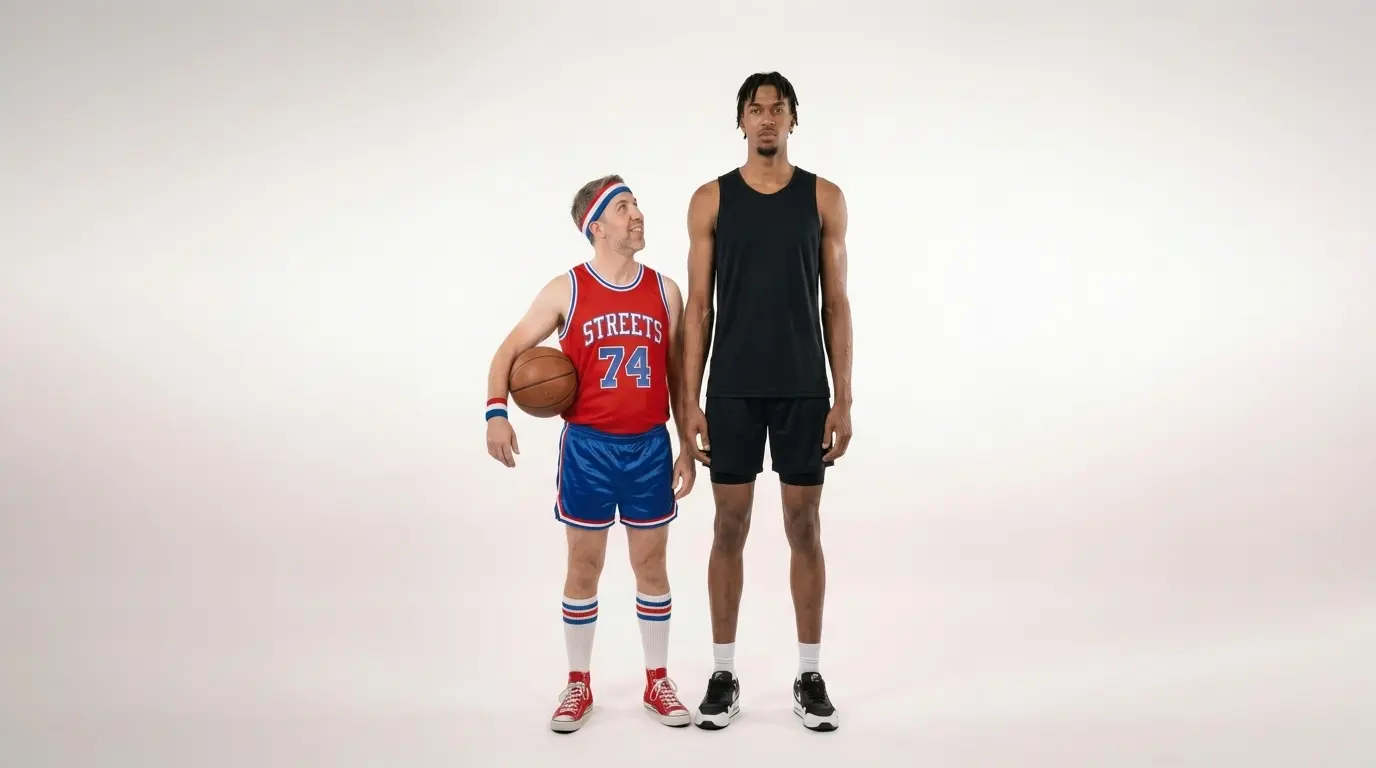
Place both characters in one photo on a plain white background. The bearded STREETS number 74 player is short and stands on the left. The other player is a 7-foot athlete on the right. Keep a dramatic height difference between them.
Result: both players side by side, with the giant towering over the short one. Save this image, you will feed it into the video as the height reference.
Step 3: Generate the court
Make the location as its own image so the video tool has a clear setting to drop the players into.
Prompt:
A real photograph of a gritty, empty outdoor street basketball court. A weathered hoop with a scuffed backboard and a torn chain-link net, cracked asphalt with faded painted lines, a rusted chain-link fence, surrounded by old brick apartment buildings. Wide-angle, eye-level, harsh mid-afternoon sunlight, natural colour, authentic film grain.
Result: the street court that ties the scene together.
Step 4: Animate it in Higgsfield
In Higgsfield, upload your four reference images: the court, the tall player, the short player, and the combined height shot. Then give it the action, beat by beat.
Prompt (shortened):
Raw handheld phone video, vertical, gritty realism, a crowd around a street court. The short bearded number 74 player drives past the towering defender, leaps, and goes up for a dunk over him as the crowd reacts. Keep the dramatic height difference between the two players at all times. Shaky handheld camera, natural afternoon light, real crowd noise.
Result: a 15-second clip. It cost about 67.5 credits. I had the credits for one shot, so what I got is what I kept.
Watch the full clip here: the finished AI street basketball video.
💡 Parent Insight: Feed the combined height image (step 2) into the video, not just the two separate players. It is what keeps the giant looking like a giant once everything starts moving.
What worked
Building it in pieces
Generating each character and the court separately gave clean, controllable images before anything moved.
Lesson: get your still images right first, animate last.
The height-difference reference
The combined two-player image kept the giant towering over me once the video started.
Lesson: a single reference image of both characters together holds proportions far better than describing heights in the video prompt.
Naming the kit
Spelling out the jersey ("STREETS", number 74, the exact colours) kept the look stable across every step.
Lesson: specific, repeated details stop the AI redesigning your character between images.
What didn't work
The combined image lost some of my likeness
When I merged the two players into one shot, my face drifted and looked a little less like me.
Lesson: keep your original photo as a reference on the combine step, or run a face-enhance pass afterwards, or regenerate until the likeness holds.
The ball never goes in the hoop
The dunk plays out, but the ball does not actually go through the net.
Lesson: AI video does not reliably follow physical outcomes. State the result you want plainly, and if the outcome matters, plan to retry.
One shot only
At 67.5 credits for 15 seconds, I could not afford retries on my monthly Higgsfield allowance.
Time and cost: the video alone was 67.5 credits, the 13 image tasks were about 75 credits each.
Lesson: write the video prompt carefully before you spend, because each render is the expensive part.
Why building it in pieces works
AI video tools are good at movement and terrible at inventing a consistent world from scratch. If you ask one tool to design the players, the court and the action all at once, it changes its mind constantly. Faces shift, jerseys redesign themselves, the giant shrinks.
Splitting the job fixes that. You make each piece as a still image, where it is cheap to regenerate until it looks right, then you hand those finished pieces to the video tool as references. The video tool then has one job: move what already exists.
The same four steps work for almost any scene. Swap the basketball court for a football pitch, a stage, a race track. Swap the jersey for a band t-shirt or a superhero suit. Your child can be the star instead of you. The workflow does not change, only the prompts. That is the part worth keeping.
Tips and tricks
Before you start:
- Pick a clear, front-facing photo of the star. Good light, no sunglasses
- Decide the one action you want before you open any tool
During the process:
- Reuse the exact same jersey and colour words in every image prompt
- Keep the combined height image and feed it into the video
- Write the full video prompt before spending credits on it
What I'd do differently:
- Run a face-enhance pass on the combined image to hold the likeness
- Save a few credits for a second video attempt
Tool comparison
Magnific (Freepik) (Essential, €72/year)
- Pros: runs Nano Banana 2, strong likeness from a photo, generous annual credits
- Cons: image enhancements add up at about 75 credits each
- Best for: the still-image steps, characters and backgrounds
Higgsfield (credit-based)
- Pros: turns reference images into believable handheld-style video
- Cons: a single 15-second clip is pricey at about 67.5 credits, so retries hurt
- Best for: the final animation step, once your images are ready
Magnific did the building, Higgsfield did the moving. Using them together is what made a 30-minute home project look like a real clip.
Common issues and solutions
Problem: the star stops looking like the real person
Solution: keep the original photo attached as a reference, especially on the combine step. Run a face-enhance pass, or regenerate until the likeness holds.
Problem: the action does not finish (the ball never goes in)
Solution: describe the outcome in plain words ("the ball goes through the hoop"). Accept that AI video often ignores physics, and retry if you have the credits.
Problem: the height difference disappears once it moves
Solution: feed the combined two-player image into the video as a reference, not just the separate characters, and state the height gap in the prompt.
Problem: jerseys, numbers or faces come out garbled
Solution: keep prompts specific and avoid real brand logos. Repeat the exact kit details every time.
Problem: credits run out faster than expected
Solution: image tasks cost about 75 credits each and a video about 67.5. Plan your generations and write prompts carefully before spending.
Final verdict
For 30 minutes and a few hundred credits, this is one of the most fun things we have made with AI at home.
It worked for our family because the kids were part of it. Maria's "Papa ate all the pies" got more replays than the dunk did, and that reaction is the whole point.
Both tools are adult products. Magnific and Higgsfield are designed for grown-ups, so run them through your own account, drive the prompts yourself, and only use photos of people who are happy to take part. Preview everything before you show the kids.
The limits are real. Likenesses can drift and the action will not always do what you ask. Treat the imperfections as part of the fun rather than a failure.