


NotebookLM for Students: Safe for Kids? (2026 Parent Guide)
.webp)
ON THIS PAGE
Subscribe To Get Weekly Family AI Discoveries

- NotebookLM is Google's AI research tool that turns sources you upload into summaries, study guides, and podcast-style audio overviews
- The minimum age is 13 for personal Google accounts, or whatever age your school sets under Google Workspace for Education
- Google announced a major education expansion on 20 April 2026, including broader rollout for K-12 students and AI literacy training for 6 million US educators
- Recently used it for an Africa geography project: three YouTube videos, two websites, and a ChatGPT Images 2.0 infographic fed back in as a source. Mateo came back naming three new African capitals.
- The killer feature for students is Audio Overview with interactive mode, but every feature needs adult supervision for under-13s
On 20 April 2026, Google announced the biggest education update Gemini has ever shipped. Expanded NotebookLM for personalised learning. Free NEET exam prep in Gemini. AI literacy training for 6 million US educators. Gemini integrated into Moodle. If you have a school-age child, this matters.
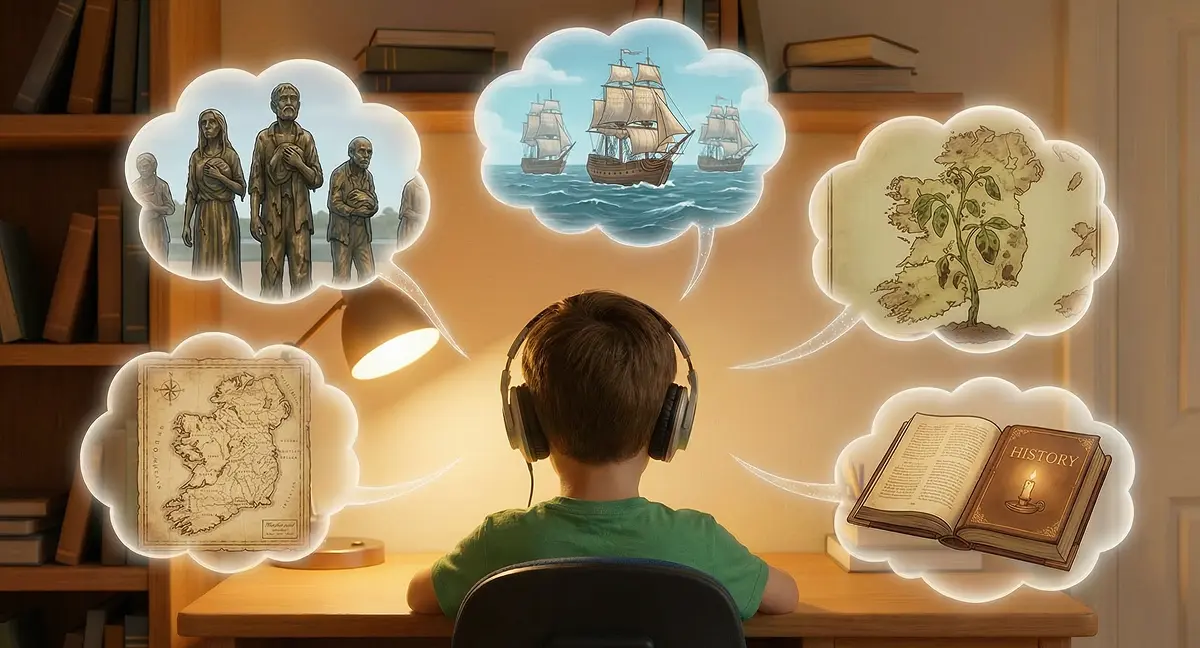
I have been using NotebookLM with my 8-year-old son Mateo for several months across different school topics. Last week his class was learning about Africa, so I built him a notebook with three YouTube videos, a couple of vetted websites, and a printed infographic I generated using ChatGPT Images 2.0. He came back from the Audio Overview naming three African capitals he had not known that morning. We have done the same workflow for the Great Irish Famine, animal habitats, and other school-led topics.
So I know what this tool can actually do in a family setting. And I know where it falls down. If you are searching "NotebookLM for students" or wondering whether it is safe for your kid, this is the honest parent answer.
Not sure which tool is right for your child?
Take our free 2-minute quiz and get personalized AI tool recommendations based on your child's age and interests.
What is NotebookLM, in plain English
NotebookLM is Google's AI research assistant. You upload sources (PDFs, Google Docs, websites, YouTube videos, typed notes). It reads them. Then it helps you understand, summarise, or transform what is in those sources.
The three things it does best for students:
- Study guides that pull the key concepts out of a reading assignment
- Audio overviews that turn your sources into a 5 to 15 minute podcast between two AI hosts who discuss the material conversationally
- Interactive mode where your child can interrupt the podcast and ask the AI hosts a question, which they answer using only the sources you uploaded
It also generates flashcards, mind maps, briefing docs, timelines, and what Google calls a "video overview." I will get to which of those are actually useful below.
The thing that makes NotebookLM different from ChatGPT or Claude: it only answers from sources you give it. If you upload three articles about the solar system, it will only talk about the solar system, and only using facts from those three articles. No random hallucinations about planets that do not exist. No off-topic drift.
For parents, this is a big deal. You control what goes in. The AI only works with what you approved.
What Google announced on 20 April 2026
The headline items from the Google announcement that matter for families:
- NotebookLM rollout for students. Previously gated behind Google Workspace for Education admin approval in many districts. The April update expanded availability for K-12 accounts.
- AI literacy training for 6 million US educators. Free teacher training program through Google's Grow with Google arm. Translation: teachers are about to start using AI in class whether your district has a policy or not.
- Free NEET exam prep in Gemini. India-focused but signals Google's direction: more subject-specific AI tutoring.
- Gemini + Moodle LMS integration. If your school uses Moodle, Gemini features are about to appear in the classroom interface.
None of this changes the core NotebookLM product. But it does mean your kid is more likely to encounter it at school this year.
Minimum age for NotebookLM: what Google actually says
NotebookLM follows standard Google account rules, which means:
| Account type | Minimum age | Notes |
|---|---|---|
| Personal Google account | 13 (US) | Higher in some regions (14, 15, or 16 depending on country) |
| Google Family Link (under 13) | Any age | Supervised account. NotebookLM access limited by parent settings |
| Google Workspace for Education | Set by school | School admin controls which AI features students can access |
For my 8-year-old, that means he cannot have his own account. He uses NotebookLM on mine, with me sitting beside him.
🔒 Safety Note: Even if your child is 13+ and has a Google account, I would not hand them NotebookLM unsupervised right away. Start with supervised sessions for the first few weeks. Make sure you both understand what it can and cannot do before they use it alone for homework.
Is NotebookLM safe for students?
In my testing, yes, with three caveats worth understanding.
What makes it safer than ChatGPT or Claude
- Grounded answers. The AI only uses sources you uploaded. No hallucinated facts, no off-topic conversations, no one-way path to inappropriate content.
- No open chat. There is no "ask me anything" mode. Every interaction is bounded by your source material.
- Citation trail. Every sentence in an Audio Overview or study guide can be traced back to the exact source line it came from. Good for academic honesty, good for catching errors.
- No image generation, no long-form creative writing. NotebookLM is a research tool, not a creative one. That removes entire categories of risk that plague general-purpose chatbots.
What I would still watch out for
- Source vetting is on you. If you upload a source with graphic or age-inappropriate content, the AI will summarise that content. Garbage in, garbage out. I always pre-read every source, or use ChatGPT or Claude to suggest age-appropriate options first. Never skip this step.
- AI can still get things wrong. NotebookLM is better than ChatGPT for factual accuracy, but it can still misinterpret a source. Listen together the first time. Catch errors in real time.
- Audio Overview is addictive. Kids genuinely love it. That is great for learning, but it can become passive consumption if you let them binge. 10 to 15 minutes is plenty for a session.
How we actually use it: two examples
Example 1: Africa geography (last week)
Mateo's class was learning about Africa last week. The school worksheet covered the basics, but he wanted to go further. So I built him a NotebookLM dedicated to the topic.
Sources I uploaded:
- 3 YouTube videos covering geography, climate, and key cultural landmarks
- 2 vetted reference websites with kid-readable Africa content
- A handful of PDFs from kid-friendly geography sources
The infographic loop. Earlier in the week I had been testing ChatGPT Images 2.0 for our 6 weekend activities post and used it to generate a clean infographic summarising the key Africa material: capital cities, biggest country by area, longest river, climate zones. I used the infographic itself as a printed learning aid (it ended up on the fridge for a week) AND fed it back into NotebookLM as a 7th source. The Audio Overview the AI hosts produced explicitly referenced the visual summary, which made the whole notebook tie together.
Result: Mateo listened to the 8-minute Audio Overview without my supervision, came back to the kitchen, and could name three African capitals he had not known that morning.
The infographic-as-source loop is the workflow trick I would not have figured out without testing both tools the same week. If you are using ChatGPT Images 2.0 for visual study aids, feed them back into NotebookLM. The audio output gets stronger.
Example 2: The Great Irish Famine (history)
On New Year's Day we walked past the famine statues on Dublin's docks. He had questions I could not fully answer. So I built a NotebookLM with five age-appropriate sources (Britannica Kids, National Geographic Kids, an academic paper I pre-read), generated a 10-minute Audio Overview targeted at an 8-year-old audience, and we listened together. He got 5 out of 5 on the comprehension quiz, then asked to learn about the Irish War of Independence next.
The full step-by-step walkthrough is in our family project: How we used NotebookLM to teach my 8-year-old about the Irish Famine.
What the two have in common
- Source vetting first. I pre-read every source or use ChatGPT to flag anything graphic before uploading.
- Audio Overview as the anchor output. Two AI hosts in conversation defuses intimidation around new topics in a way text summaries never do.
- Listen together the first time. Catch errors, see which features land, follow up with conversation while it is fresh.
- Loop visuals back as sources. Print or feed any supporting visual generated by ChatGPT Images 2.0 back into NotebookLM. Kids retain visuals differently from audio, and the loop strengthens both outputs.
💡 Parent Insight: The feature I wish I had known about earlier is Interactive Mode. During the podcast playback, your child can tap a button and ask the AI hosts a question directly. They pause, answer using the sources, then continue. It turns passive listening into active learning.
Age recommendations by feature
Not every NotebookLM feature is right for every age. Here is how I would match features to students:
| Feature | Best age | Why |
|---|---|---|
| Audio Overview (Brief, 3-5 min) | 6+ supervised | Short attention spans. Good for history, science topics, biographies |
| Audio Overview (Deep Dive, 10-15 min) | 8+ supervised | Longer format suits kids who can sit through a full podcast |
| Interactive Mode | 8+ supervised | Best for curious kids who ask questions. Needs verbal skills |
| Study Guide | 10+ | Useful when they can read longer text independently |
| Flashcards | 10+ | Great for vocabulary and key terms. Adjustable difficulty |
| Mind Map | 12+ | Abstract visual thinking, better for middle school and up |
| Briefing Doc | 13+ | Reads like a research brief. Too dense for most younger kids |
| Video Overview | All ages | Visual format helps kids who do not engage with audio alone |
How to set up NotebookLM for your student
If you are starting from zero, here is the path that worked for us:
Step 1: Pick one topic they already care about
Do not start with a random homework assignment. Start with a topic your kid has asked you about, or that they are excited about at school. For us it has been everything from the Famine statues on the docks to a school topic on Africa they wanted to go deeper on. Real curiosity makes the first session land.
Step 2: Find 3 to 5 age-appropriate sources
Use ChatGPT or Claude. Ask: "I want to create a NotebookLM podcast for my [age]-year-old on [topic]. What sources do you suggest? They need to be factually accurate but not too graphic or too advanced."
Then preview each source yourself. Takes 10 minutes. Skips the risk of the AI finding something you did not expect.
Step 3: Upload and generate
Go to notebooklm.google.com. New notebook. Upload sources. Click "Audio Overview." Customise the prompt with the age and your learning goals.
My prompt template: "Create a [length]-minute podcast for a [age]-year-old audience. Define complex terms conversationally within the dialogue. Include [number] comprehension questions at the end."
Step 4: Listen together the first time
Do not hand your kid headphones and walk away. You will catch moments of confusion, catch factual errors, and see which features land.
Step 5: Extend if they are engaged
If the first session goes well, generate flashcards, a mind map, or a study guide from the same sources. You do not need to reupload anything.
What I would not use NotebookLM for
- Homework they should be writing themselves. NotebookLM can generate a study guide from their textbook, but it cannot write their essay. Do not let it. Same rule as Claude and ChatGPT: first draft is kid brain only.
- Foundational subjects still being learned. For phonics, basic math, or handwriting, use a tool designed for that (like Synthesis Tutor for math). NotebookLM is a research tool, not a teaching tool.
- Anything you have not vetted. The source control is a feature, but only if you actually use it. Uploading random YouTube links without previewing them removes the whole safety benefit.
The bottom line
NotebookLM is the most parent-friendly AI tool I have used with my kids, because you control the inputs. For a supervised 8 to 12-year-old, it is genuinely useful for homework prep, curiosity-driven learning, and topic deep-dives. For 13+, it becomes a legitimate study tool they can use more independently.
The 20 April 2026 Google announcement means your child is likely to encounter NotebookLM at school this year. Better they learn to use it well at home first, with you next to them, than meet it cold in a classroom where the teacher is also figuring it out in real time.
Want the full step-by-step for one of these notebooks in family-project form? The Irish Famine walkthrough is here: How we used NotebookLM to teach my 8-year-old about the Irish Famine.
And if you want weekly reviews of AI tools tested with my own kids (3, 6, and 8), join the newsletter below.