


8,000 Free AI Image Prompts to Try With Your Kids

ON THIS PAGE
Subscribe To Get Weekly Family AI Discoveries

- The blank box is the real barrier. A prompt library removes it.
- YouMind holds 8,000+ free GPT Image 2 prompts, each with the finished image and the exact text that made it. No signup.
- The trick with kids: pick a prompt they love, then swap in their world (their team, their pet, the thing they are obsessed with this week).
- I customised two in two minutes each: Colombia’s four biggest cities for our trip, and a footballer poster for my 8-year-old.
- You can even animate the results into video. Always review prompts and outputs, and mind each tool’s age rating.
Most parents I talk to are not stuck on the tools. They have ChatGPT or Gemini open, the kids are keen, and then everyone stares at the blank box. What do we actually make? If you have ever gone looking for AI image prompts for kids and come up blank, this is for you.
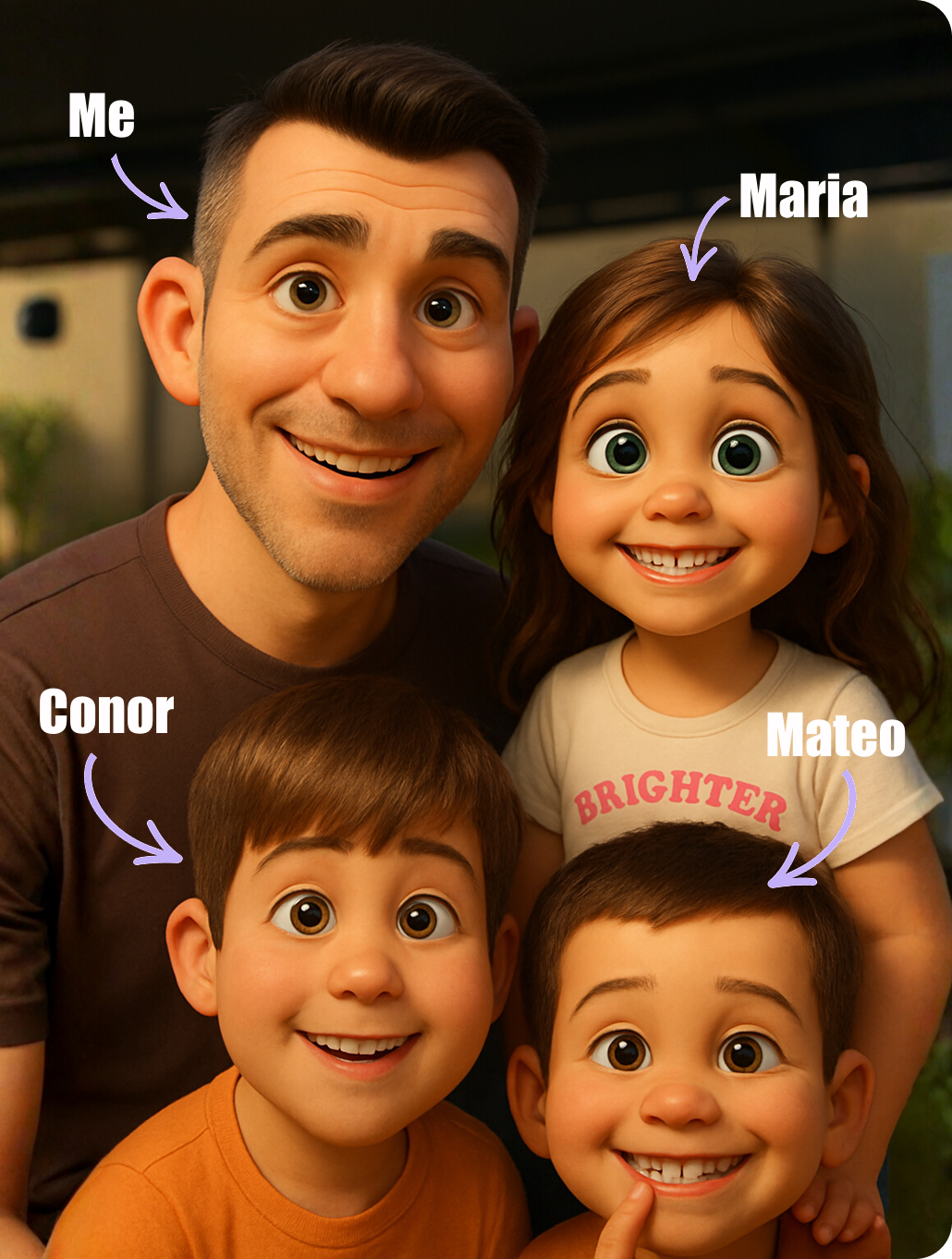
I test AI with my three kids most weeks (Mateo is 8, Maria is 6, Conor is 4), and the single thing that slows us down is never the software. It is running out of ideas. A four-year-old does not care that the model is clever. He wants to make a shark, right now, and I have about thirty seconds before he loses interest.
This week I found the fix, and it has changed how we start. In this guide: the free library I now open first, how to turn any prompt into something about your own child, two examples we made this week, and the safety basics before you begin.
Not sure which tool is right for your child?
Take our free 2-minute quiz and get personalized AI tool recommendations based on your child's age and interests.
Why the hardest part of AI with kids is the ideas
Here is what nobody tells you about creating with AI at home. The technology is the easy bit. The skill that actually matters is knowing what to ask for.
A blank prompt box is intimidating, even for adults. For a child it is worse, because they think in characters and stories, not in "detailed prompts." So the session stalls before it starts. You type something vague, get a mediocre picture, and the kids drift off.
The answer is to stop starting from scratch. Instead of inventing a prompt, you borrow a great one and make it yours.
💡 Parent Insight: The best AI sessions in our house never begin with a blank page. They begin with my kids scrolling a library of examples and shouting "that one!"
The free library I now start with
The library is called YouMind, and it holds over 8,000 prompts for GPT Image 2, OpenAI’s image tool. You can browse it free at youmind.com/gpt-image-2-prompts. No signup, nothing to pay.
What makes it genuinely useful, rather than just big:
- Every prompt shows its result. You see the finished image next to the exact text that produced it. You are not guessing.
- It is organised by type. Comic strips, posters, trading cards, infographics, avatars, storyboards. Easy to find something a specific kid will like.
- You copy the prompt straight out. Paste it into ChatGPT, tweak it, generate.
Honest limits, because that is the point of this site. It is built for adults sharing creative prompts, so you are the filter for what is age-appropriate. The prompts are written for GPT Image 2 specifically, so results vary in other tools. And the sheer size means you scroll past a lot before something clicks. Treat it as a recipe book, not a kids’ menu. (I found it through Nathan Hodgson, who makes genuinely useful AI videos.)
How to make any prompt about your kid
This is the whole technique, and it takes about two minutes.
- Let your child pick. Open the library and let them choose an image they love. Ownership is what keeps them in the chair.
- Find the subject. Most prompts have a clear "who" or "what" near the top: a player, a city, an animal, a character.
- Swap in their world. Replace the subject with theirs. Their football team. Their pet. The cartoon character they will not stop talking about. Keep the rest of the prompt as it is.
- Generate, then adjust. Change one thing at a time if it is not right. Colour, background, the number of items.
💡 Pro Tip: Generate at the highest resolution your tool offers. AI images mangle small text at low resolution. When I made a labelled poster at 1K the words were mushy; the 2K version was crisp.
Two we made this week
Here are two real examples, both customised from library-style prompts in about two minutes each.
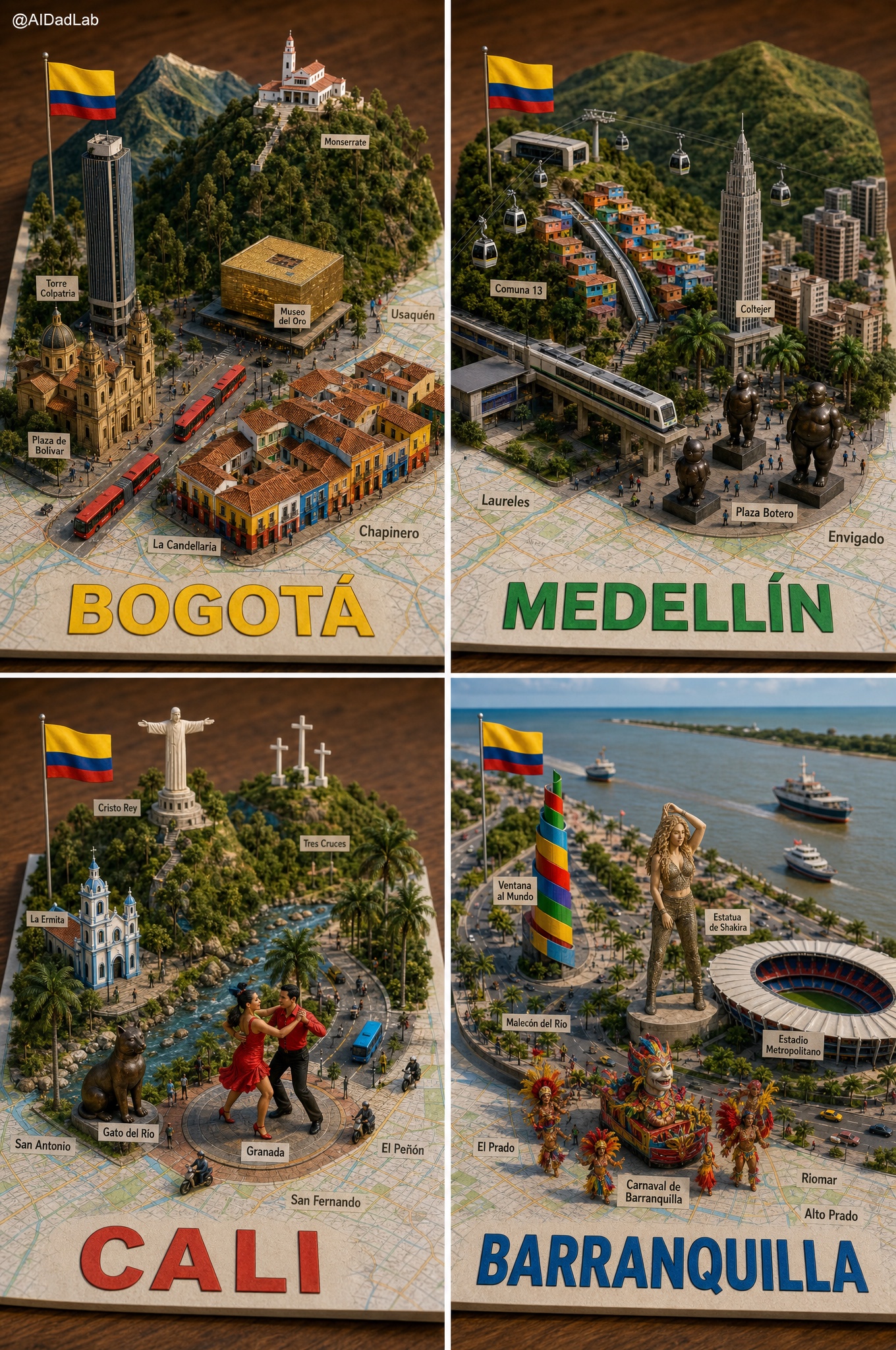
Colombia’s four biggest cities. We are about to take the kids to Colombia, so I took a "famous world cities as 3D miniature maps" prompt and swapped the cities for Bogotá, Medellín, Cali and Barranquilla. Now they are learning the landmarks before we land, and it doubles as a "spot the place" game.
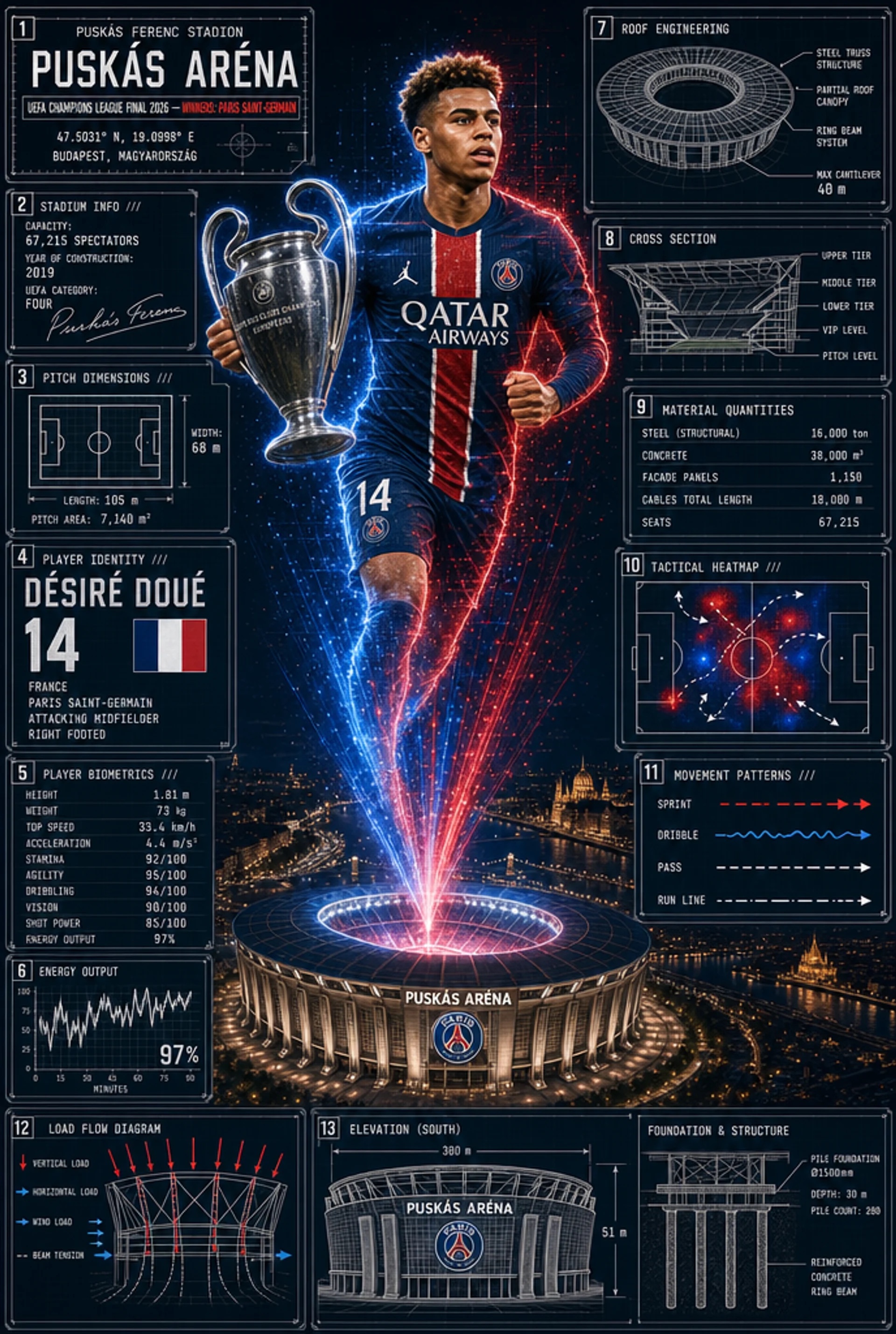
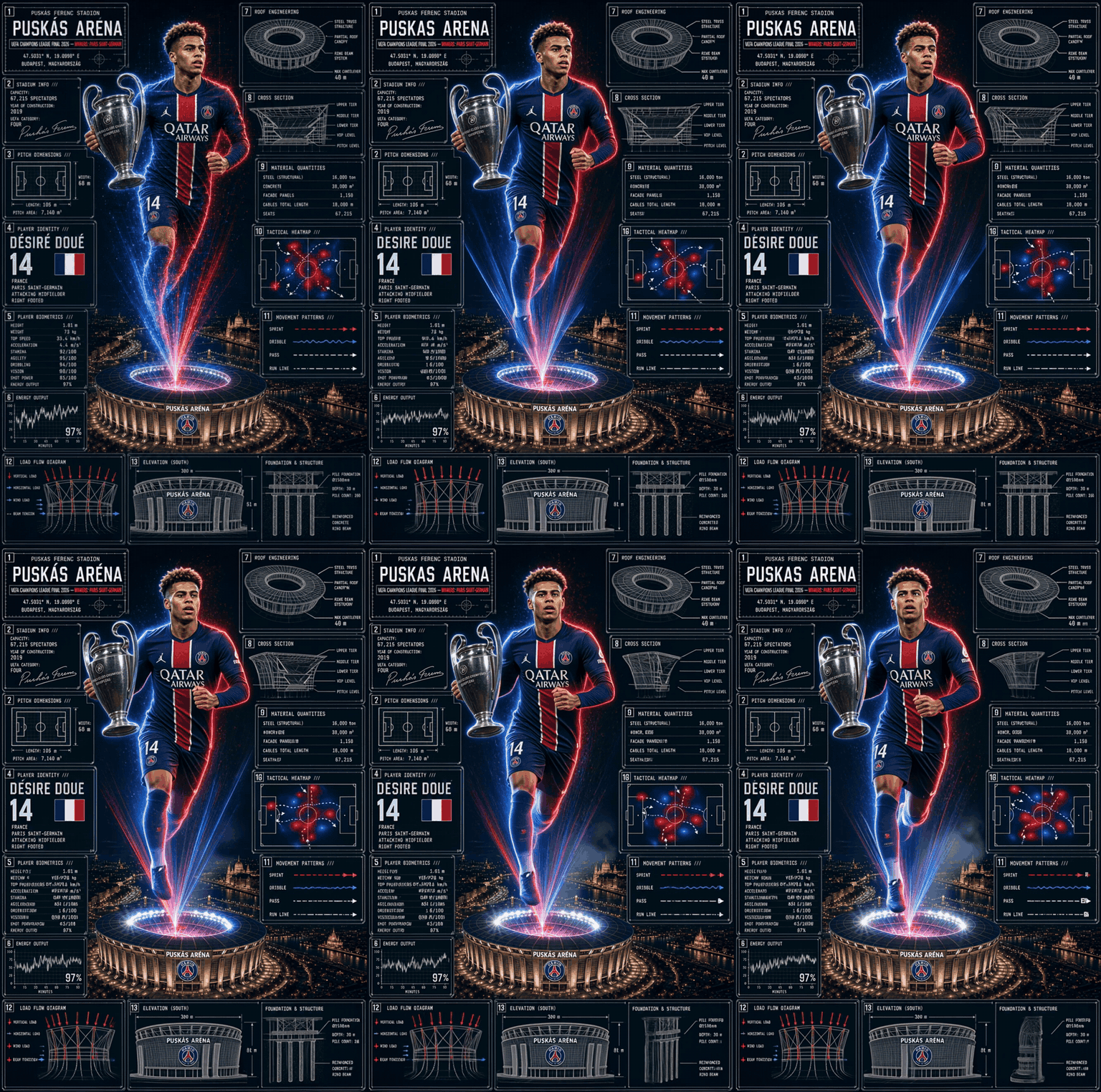
A footballer poster for my 8-year-old. Mateo is football-mad, so I took a "sports engineering poster" prompt, a dramatic player surrounded by blueprint-style stat panels, and rebuilt it around his favourite player and a famous stadium. Ten minutes, one very happy boy, a poster he wanted printed.
💡 Parent Insight: Notice the pattern. I did not invent either prompt. I borrowed a strong template and pointed it at something my kids already love. That is the entire method.
For more ready-to-use ideas in this style, we keep a running set of copy-paste activities in our ChatGPT Images 2.0 activities guide, including character sheets, comic strips and hidden-object scenes.
From a picture to a video
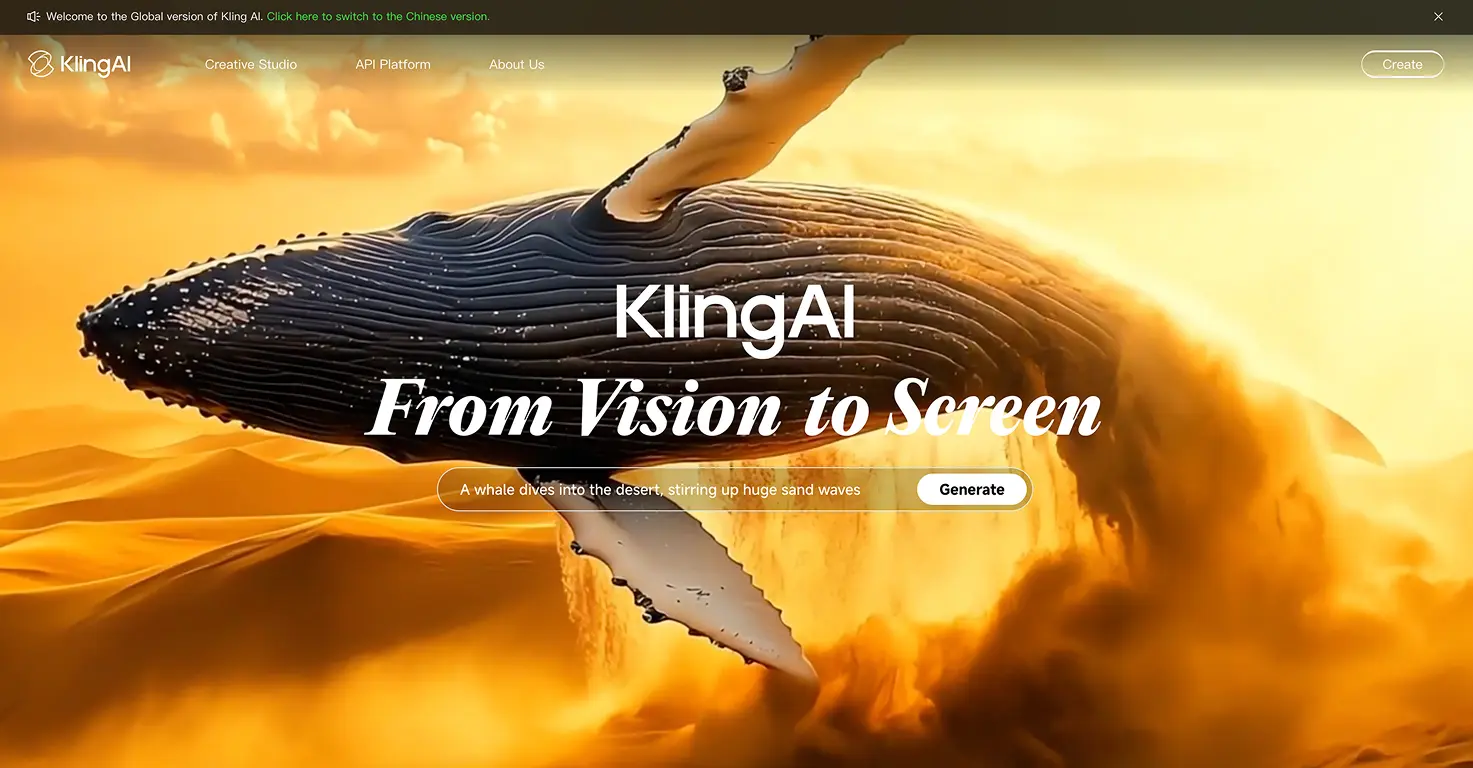
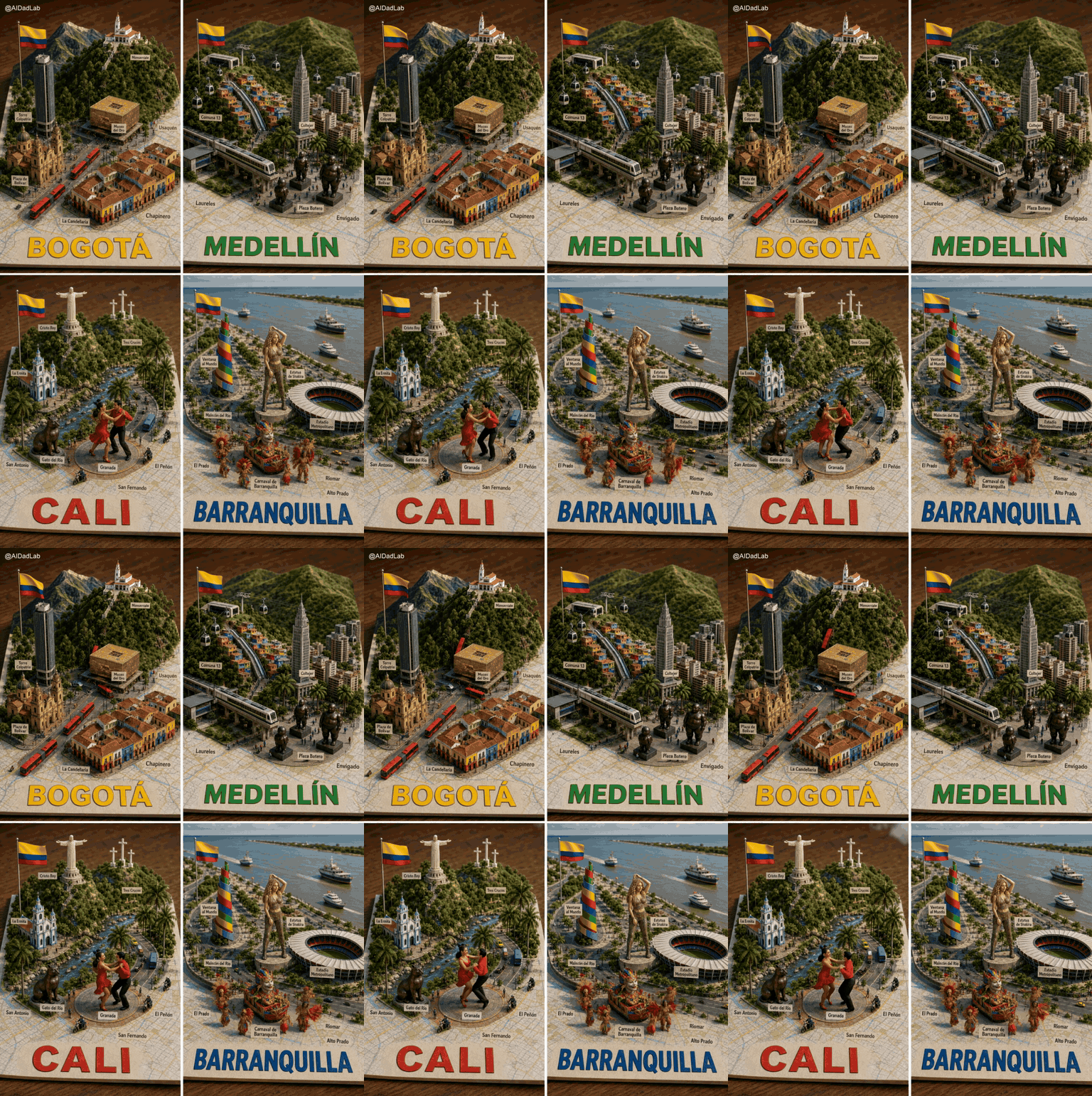
A still image is only the start. I dropped both of those examples into Kling, an AI video tool, and they came to life:
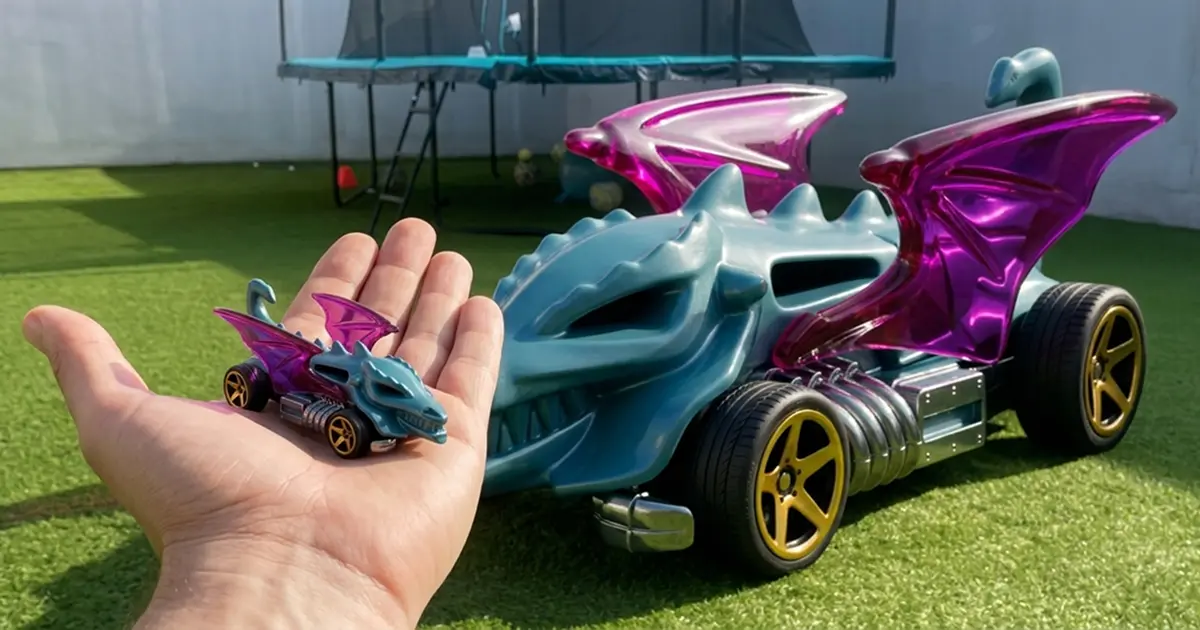
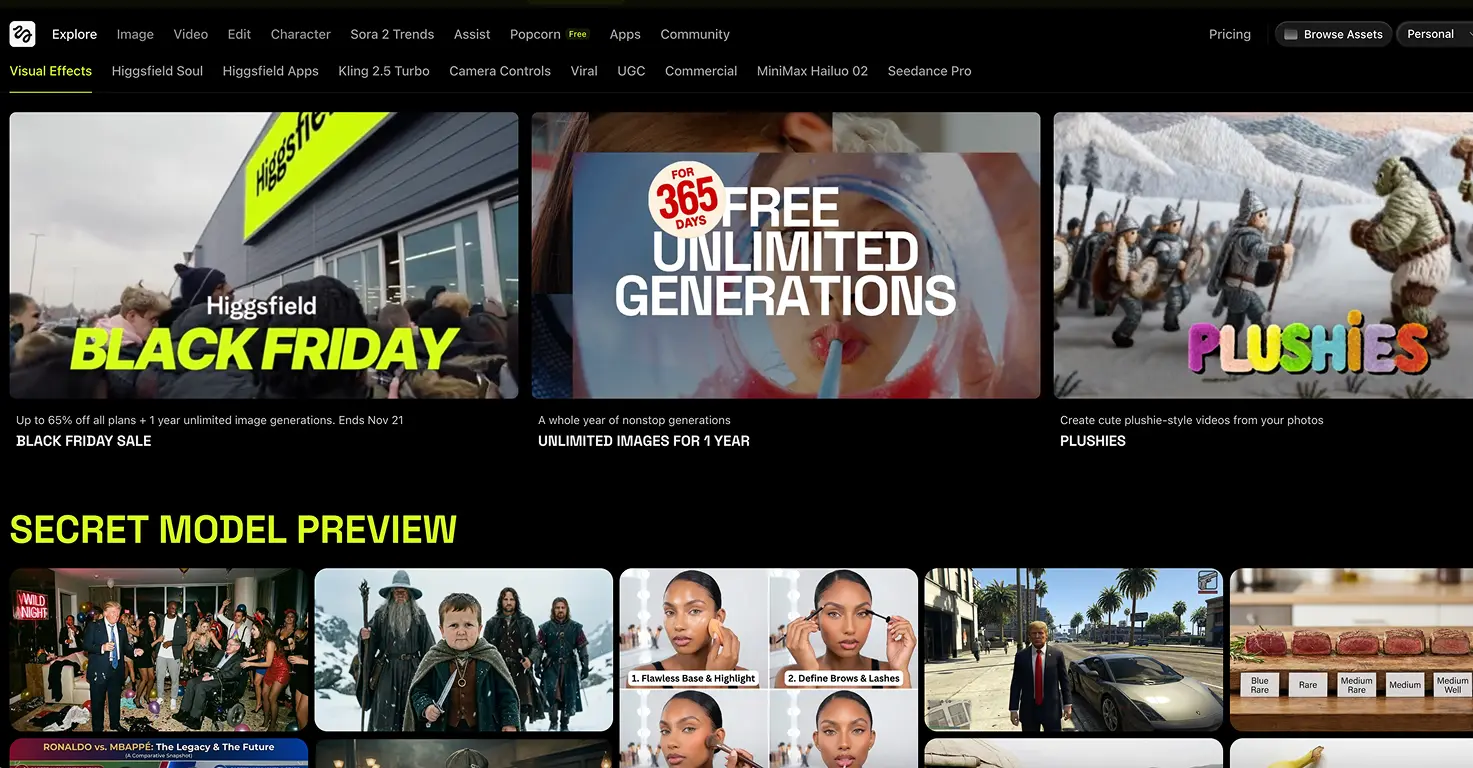
You can go a step further and animate a whole story. We drew a storyboard in ChatGPT Images 2.0, then turned it into a cartoon with Higgsfield. The full walkthrough is in our make an AI cartoon with your kids project. If you would rather start with a toy or a drawing, we also turned a Hot Wheels car into a life-sized supercar and brought a child’s drawing to life as a 3D character. The image is the start. The video is where the jaws drop.
A quick word on safety
These are creative image tools, not walled gardens. A few rules we use:
- You run the search. The library is made for adults, so a parent picks and screens the prompts, not the child browsing alone.
- Review every prompt and output. Read what you are about to generate, and look at the result before your child does.
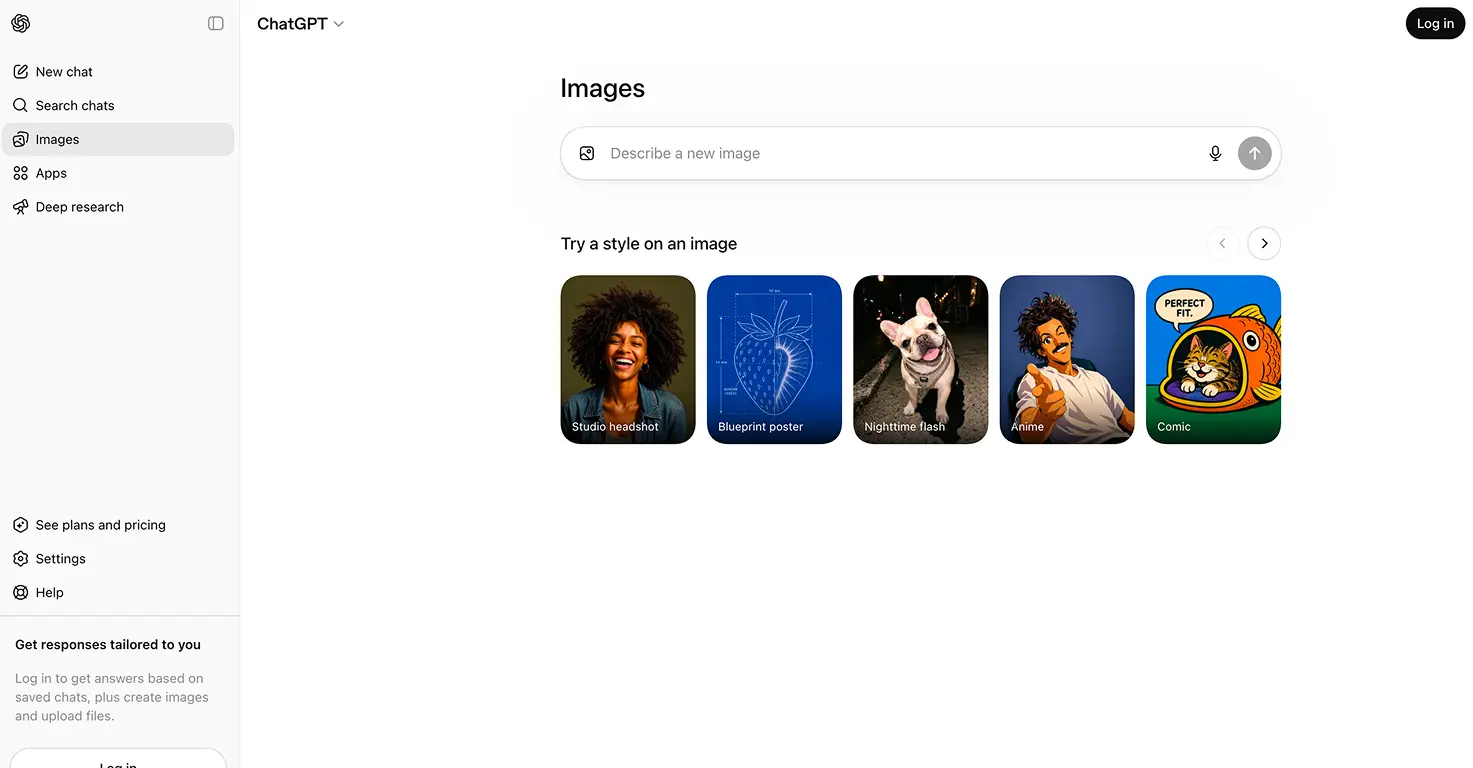
- Mind the age ratings. ChatGPT Images sits inside ChatGPT (13+ with a parent). Video tools like Higgsfield are 18+ and parent-operated. Your child directs, you hold the keyboard.
- No real names or faces of other people in prompts without consent.
For a fuller breakdown of what is appropriate at each age, see our guide to whether AI is safe for kids by age.
Getting started this weekend
You do not need a plan or a paid account to begin.
- Open the prompt library at youmind.com/gpt-image-2-prompts.
- Let your child pick one image they love.
- Copy the prompt, swap the subject for something in their world, and generate in ChatGPT.
- If they love it, try animating it next.
The bottom line
The tools are not the hard part of doing AI with your kids. The ideas are. A free prompt library solves that in one move: borrow a great prompt, make it about your child, and let them watch their world appear on screen. Start with one this weekend. You will be surprised how fast "I don’t know what to make" turns into "can we make another one?"
Free printable PDF
10 AI image prompts to try with your kids this weekend, ready to copy, paste and customise.
And if you want a new tested idea every week, join the hundreds of parents on the AI Dad Lab newsletter. I test AI with my own three kids and share what actually works.